

- Contents
Converting a Signed Off Host Server Certificate into a PFX file
Once you have received the Signed Certificate back from the Signing Authority, we will need to convert it into a .PFX format for the Windows Certificate Store.
-
Navigate to the Media Server directory, in most cases, it will be in the “D:\Program Files\Interactive Intelligence\MediaServer” directory and locate the “ssl_app-w32-8-5. Exe file.
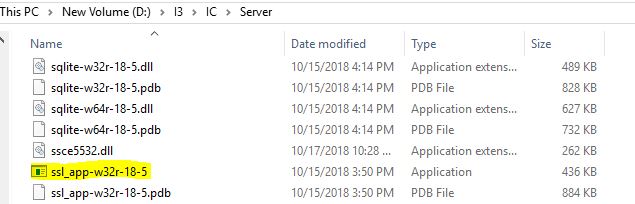
You will receive a warning that the “openssl.cnf” file cannot be opened, ignore the warning.

- In the openssl command line, enter the following command:
pkcs12 -export -in " D:\Program Files\Interactive Intelligence\Certificates\CSRs\winstorms1.cer" -inkey " D:\Program Files\Interactive Intelligence\Certificates\CSRs\ServerGroupPrivateKey.bin" -out " D:\Program Files\Interactive Intelligence\Certificates\CSRs\winstorms1.pfx"

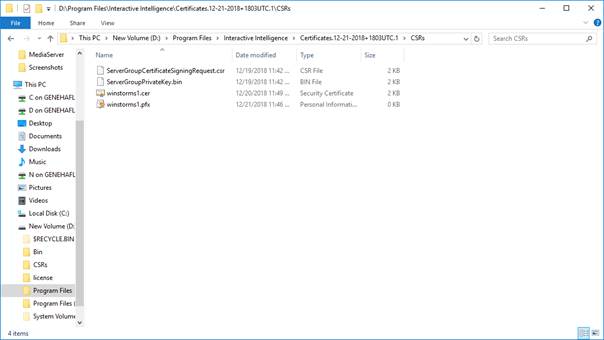
In our example above the name of the certificate is “winstorms1.cer” and the private key is named “ServerGroupPrivateKey.bin”.
Please use or substitute your server’s name within the Command line.
In most cases, the Media Server Certificate is located in the D:\Program Files\Interactive Intelligence\Certificates directory. Your Certificate Directory may be different based on how you installed the system. In any case, please use the correct directory location for your server when using the Command Line entries.
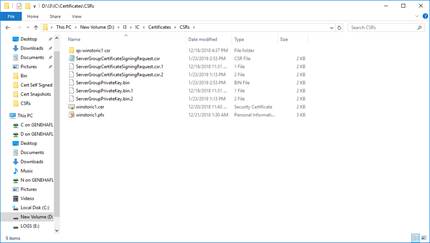
The command line points to the signed certificate so that it can be converted into the .PFX format.
If there are any spaces within the directory name, place apostrophe (“) at the beginning and end of the directory name.
- Enter a Password, and please note or maintain that password for future use.

- Verify Password

- Conversion completed:

- Check the .PFX file, again please go to the appropriate certificate directory for your server: