


- Contents
Create a Certificate Signing Request
Important! If you plan to use a single certificate for all certificate uses, you must create a certificate signing request for the Server Group certificate use type. If you do not plan to use a single certificate for all certificate uses, you must create certificate signing requests for all the certificate use types.
1. Open IC Setup Assistant and then click Certificates. The Manage Certificates page appears.
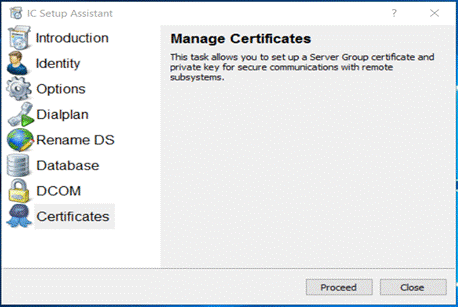
2. Click Proceed. The Select a Certificate Management Option page appears.
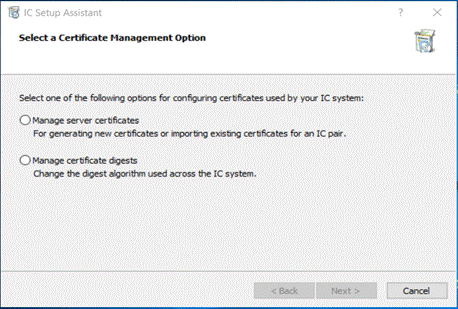
3. Click Manage certificates and then click Next. The Certificate Signing Option page appears.
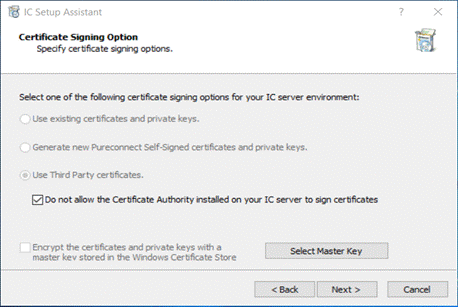
4. Click Use Third Party Certificates and check Do not allow the Certificate Authority installed on your IC Server to sign certificate checkbox.
5. Click Next. The Certificate Signing Requests page appears. Click Yes on the Warning Message.
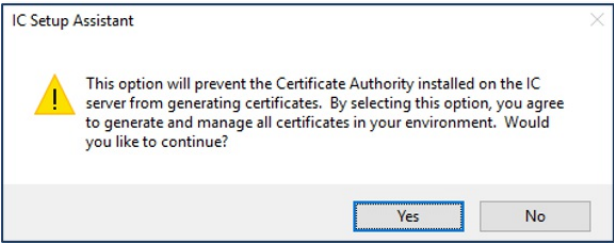
If you chose to use a single-server certificate for all certificate use types, only one certificate use type appears on this page. Otherwise, all certificate use types appear.
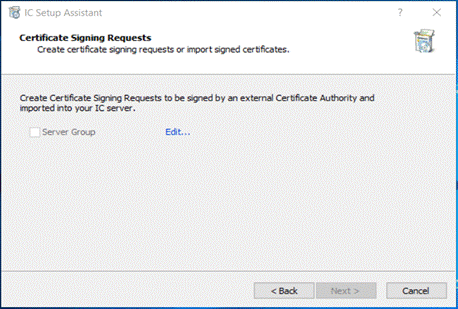
6. To create a certificate signing request for a certificate use type, click the ellipsis (...) next to the certificate use type. The Import or Select Signed Certificate page appears.
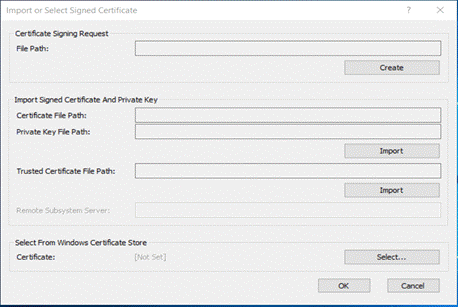
7. Click Create. IC Setup Assistant displays a message to indicate that you successfully created the request. The File Path field indicates the path to the certificate signing request file and the private key.
Note: Remember the path to the certificate signing request file and private key so that you can send the file to the certificate authority and specify the private key during import.
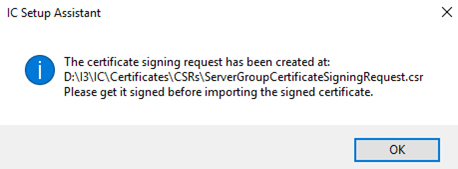
8. Click OK. On the Certificate Signing Requests page, the IC Setup Assistant place a checkmark next to the certificate use type for which you created a certificate signing request.
9. If you chose to use a separate server certificate for each certificate use type, create a certificate signing request for the remaining certificate use types and then click Next.