


- Contents
PureConnect Cloud Resources
Manage MyCloud User Access and Roles
Authorized administrators can grant other potential MyCloud account users access to MyCloud, and access to MyCloud roles that enable them manage different aspects of the company's PureConnect Cloud service. The roles that MyCloud users can have include:
|
MyCloud Role |
Description |
|
Organization Admin |
This role enables the user to manage customer and partner access to MyCloud, and it permits access to billing information, such as usage charts and EOM reports. This role also has TSRA functions and can manage TSRA Only users. |
|
MPLS Editor |
This role enables the user to edit the company's MPLS workbook. It has limited access and is enabled selectively by Customer Care. |
|
PCC TSRA Management Only |
This role limits the scope of the PureConnect Cloud (PCC) user's view in MyCloud and only provides access to available PureConnect applications via Terminal Server Remote Access (TSRA). NOTE: When this role is selected, it overrides/cancels any other selected roles. |
To manage MyCloud users:
Note: To manage MyCloud users, you must have the Organization Admin role assigned to your account. Contact your local administrator, partner, or Customer Care to request this role.
-
Log in to https://mycloud.inin.com/login
-
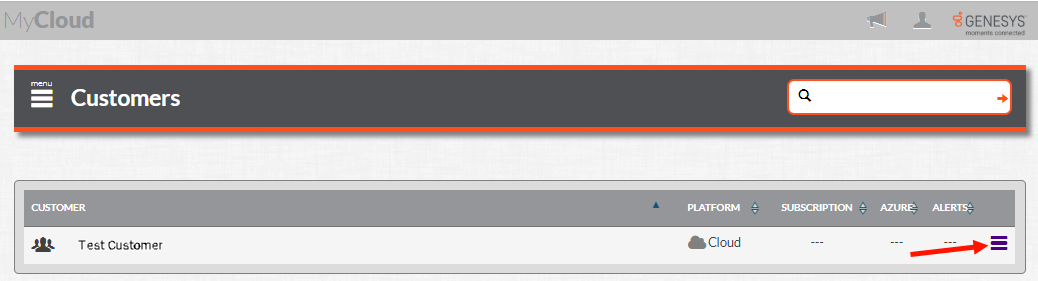
Click the hamburger menu to show the slide-out menu options on the left. Depending on your role, available menu selections will differ.
-
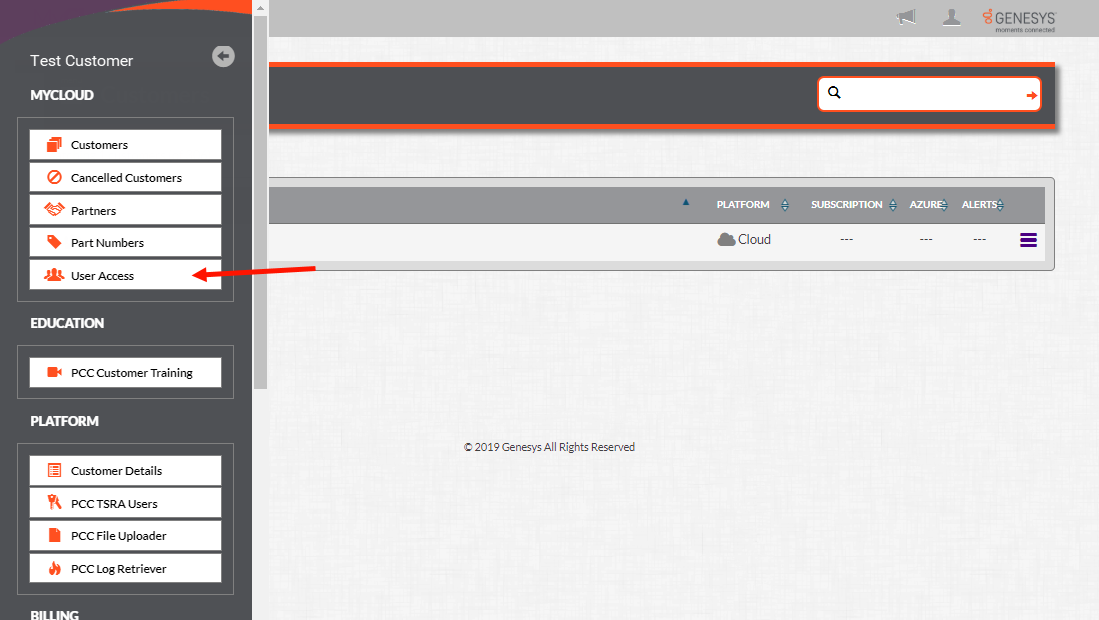
Click User Access to show the list of users in the account.
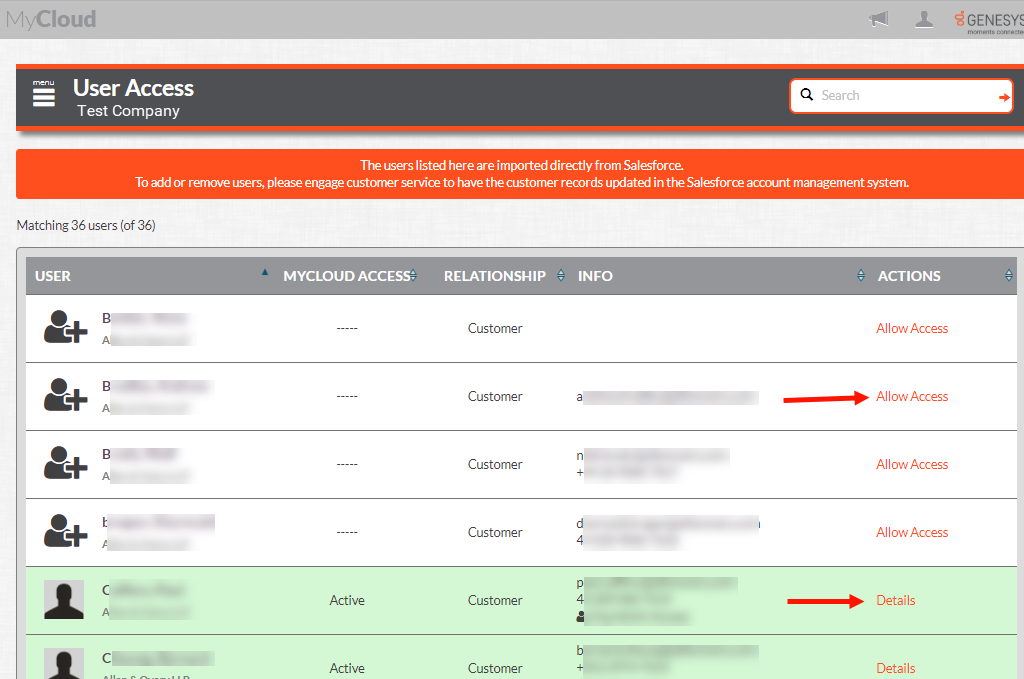
The list of potential and active MyCloud users appears. This list is generated from the company's account information in Salesforce, based on names designated by the company and the Genesys partner (if applicable).
-
To activate a user's MyCloud access, click Allow Access in the row with the user's name. The user's MyCloud account becomes Active, and the Allow Access link changes to Details. Basic initial access enables the user to log in to MyCloud and see only Education links. You must assign the user a role to enable them to see other options and manage the system.
Note: MyCloud does not send activated users an email notification. The Organization Admin can notify users of their access to MyCloud, and these users must use the same credentials provided by Customer Care to log in to the My Support portal.
To manage MyCloud users Admin and TSRA controls:
-
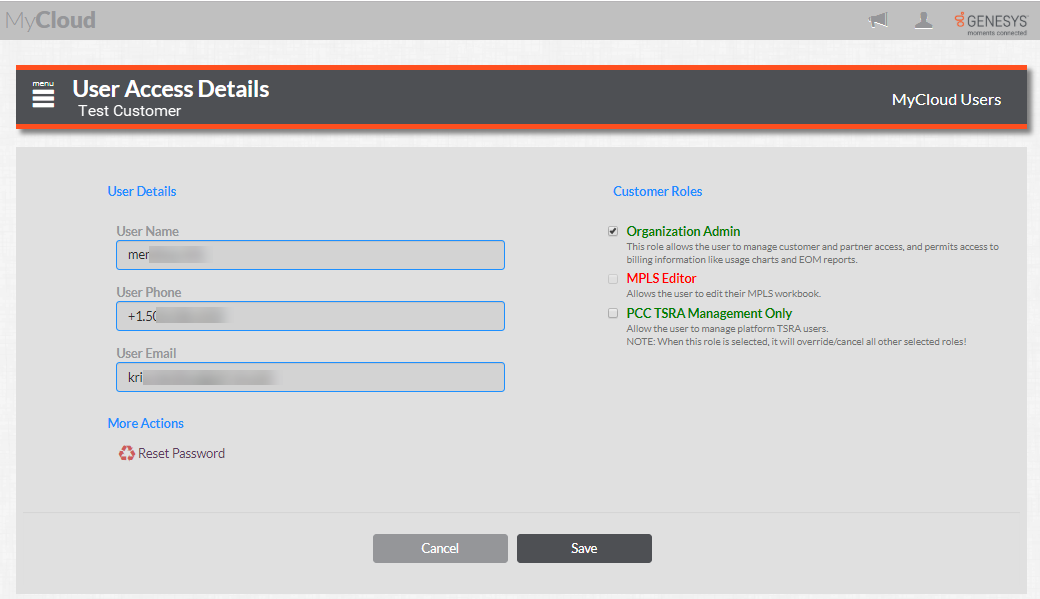
On the User Access page, click Details in the row with the user's name. The User Access Details view appears.
-
Select the appropriate customer role according to the function and access needs of the MyCloud user. Click Save to complete the changes.
You can optionally reset the MyCloud user's password. See Reset a MyCloud Password for details.