


- Contents
Interaction Attendant Help
Re-record default prompts in handlers
Some default prompts are stored in a handler rather than in wave audio files. These prompts cannot be updated in Attendant, since they are embedded in a handler and are not externally stored .wav files. This procedure explains how to optionally re-record default prompts to match the voice used in your own custom menus.
The handler named Prompt_Attendant.ihd contains all of Attendant's default prompts. To change these prompts, you must re-record them using Interaction Designer. The procedure below assumes that you are using the CIC version of the Interaction Designer, the CIC's graphical development tool.
A word of caution—you should not open or modify Interaction Attendant handlers other than Prompt_Attendant.ihd. Changing Attendant's other handlers may cause your menus to stop functioning correctly. The prompts you need to re-record are all located in Prompt_Attendant.ihd, and referenced from there by Attendant's other handlers using Play Prompt Extended tools.
Steps to Complete
-
Start Interaction Designer.
-
Pull down the File menu and select Open.
-
Select \ic\handlers\30handlers\<lang>\Prompt_Attendant<lang>.ihd. Press the Open button.
-
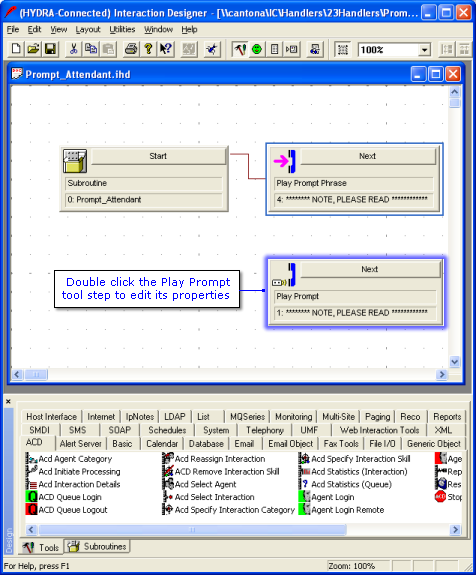
Double-click the Play Prompt step to open its Property sheet.
-
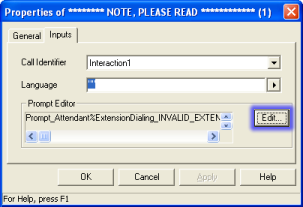
Click on the Inputs tab. Then press the Edit button.
-
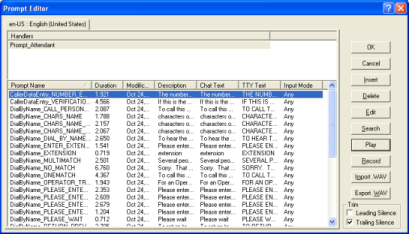
Select a prompt to re-record, and press click the Record button to begin recording.
-
Repeat step 3 to re-record other prompts as needed.
-
Press OK to close the Prompt Editor window.
-
Press OK again to close the properties page.
-
Select Save from the File menu to save changes.
-
Select Publish from the File menu to put changes into effect. Interaction Attendant will begin using the new prompts immediately.