


- Contents
Interaction Attendant Help
Record a prompt in another language
Follow these steps to record a prompt in a language other than the default language. You can perform this procedure from any form or dialog that contains embedded audio controls. This procedure can be used to re-record any prompt, including the default language prompt.
-
Select a prompt file in the Audio File Name list box.
-
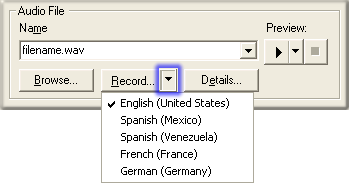
Select a language from the Record in Alternate Language list box. Checks indicate which language the prompt has been recorded in. In the example below, the prompt has been recorded in English only.
-
The action you perform next depends upon whether or not you are using a SIP phone or are running Interaction Client in remote mode.
-
Your telephone will ring if you are running Interaction Client remotely, or use a SIP phone. When it does, pick up the receiver and begin speaking the prompt. See also: Tips for recording prompts from SIP phones.
-
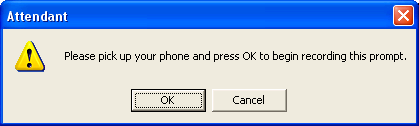
If you are not using SIP or a remote connection, you are prompted to pick up your telephone handset.
-
-
Take your telephone off-hook. Press OK to dismiss the dialog, and listen to the audio prompt:
-
"Please record your prompt after the tone. When you are finished, press 1."
-
Begin speaking when you hear the tone.
-
When you are done, press 1 to tell the system to stop recording.
-
Press any of the following digits to review, re-record, save, or discard the prompt:
-
To save your prompt, press 1.
-
To review (listen) to your prompt, press 2.
-
To record the prompt again, press 3.
-
To discard the prompt, press 4.
-
When you are finished, hang up or disconnect the call.
Related Topics