


- Contents
Group Policy Deployment Technical Reference
Create a group policy to run a startup script (machine policy)
-
Open the Active Directory Users and Computers applet on the domain controller and create a new Organizational Unit (OU) to contain the computers for the client install. In this example, the OU is named
ICBMApps_Install.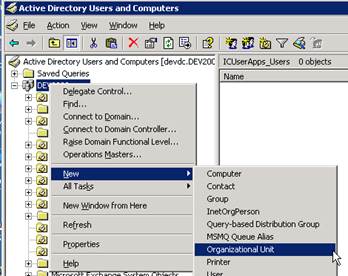
-
Right-click the new OU and select Properties.
-
Click the Group Policy tab and click the Open button to start the Group Policy Management snap-in.

-
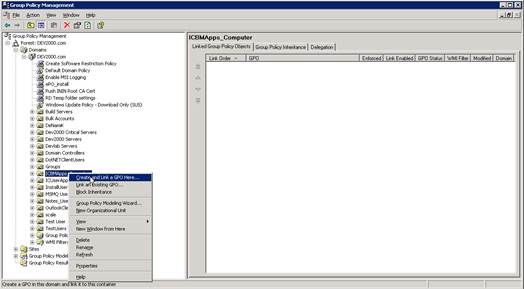
Find the OU in the tree, right-click it, and select Create and Link a GPO Here.
-
Give the GPO a name. In this example, the GPO is named
ICBMAppsInstall.
-
Right-click the GPO that is created and select Edit to start the Group Policy Object Editor.

-
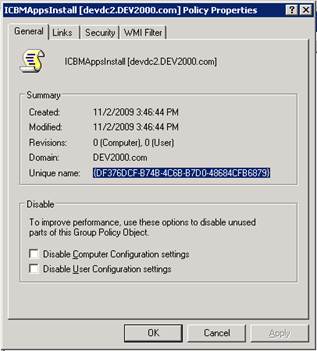
Right-click on the GPO name at the top of the tree and select Properties.

-
Click the General tab and note the Unique Name value. This value is used by Active Directory to create a folder where scripts relating to this group policy will reside on the domain controller.
-
In Windows Explorer, locate the folder with the Unique Name value under the Windows\SYSVOL\domain\Policies folder. Place the script in the Machine\Scripts\Startup folder there. In this example the script is named ICBMApps_InstallScript.vbs. Windows Explorer can be closed after placing the script.

-
Go back to the Group Policy Object Editor and expand the Computer Configuration branch of the tree, and then the Windows Settings branch, and click Scripts (Logon/Logoff).
-
Right-click the Startup script and select Properties.

-
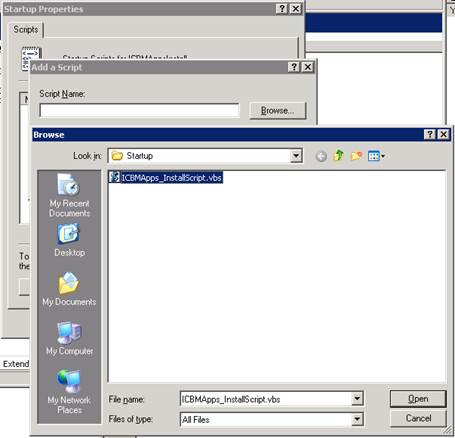
Click the Add button to add the script.
-
Click the Browse button to select the script or type its name in the Script Name field.
-
The script should appear in window on the Startup Properties page. Click OK to close the property page.

-
Right-click the GPO and select Enforced to enforce the group policy.

-
Add computers to the OU.
-
From the command line, type gpupdate to update the group policies for the domain.