


- Contents
Interaction Media Server Technical Reference
Add CIC Server to Interaction Media Server
Complete these steps to configure Interaction Media Server to communicate with one or more CIC servers.
Note:
Before you can do this procedure, you must have a functional CIC server in your network.
To add a CIC server to Interaction Media Server
-
On a personal computer in your network or on the Interaction Media Server itself, open a web browser and navigate to the URL address of the Interaction Media Server computer. This address must include the fully qualified domain name or IP address, and the port number that Interaction Media Server is using as demonstrated in the following example:
http://mediaserver1.mydomain.com:8084Note:
Packaged Interaction Media Servers use HTTP port 8083. Software-only installations of Interaction Media Server default to HTTP port 8084.
If you assigned credentials, Interaction Media Server prompts you for the administrative user ID and password.
-
Type the administrative user ID and password in the appropriate boxes and then click OK. The Status-About page appears.
Note:
If you forget the user name or password of the Interaction Media Server web interface, you can clear the values in the following registry keys on Interaction Media Server:
HKEY_LOCAL_MACHINE\SOFTWARE\Interactive Intelligence\MediaServer\WebConfigLoginName
HKEY_LOCAL_MACHINE\SOFTWARE\Interactive Intelligence\MediaServer\WebConfigLoginPassword
You can then log on to the web configuration interface without credentials and can reset them once you are in the web configuration interface. Do not specify a plain-text user name and password in these registry values.
-
In the upper right corner, click the Config icon. The Config-Servers page appears.
-
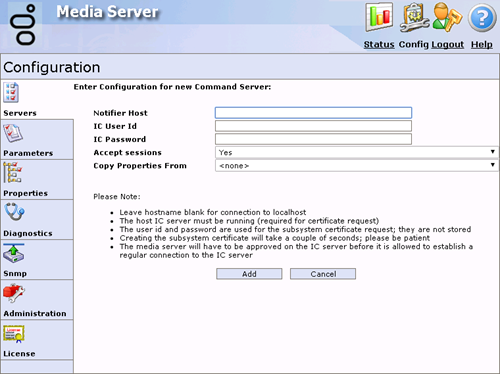
Click Add Server. The Enter Configuration for new Command Server page appears.
-
In the following boxes, specify the indicated information:
-
Notifier Host - Fully qualified domain name of the CIC to which you want to connect this Interaction Media Server.
-
IC User Id - CIC administrative user ID that allows Interaction Media Server to log on to the server.
-
IC Password - Password for the administrative user ID that you specified in the previous text box.
-
Accept sessions - Indicates whether to have this Interaction Media Server accept host sessions from the specified CIC server.
-
Copy Properties From - Indicates whether to copy the defined values from a previously defined CIC server. If this CIC definition is your first, leave this field blank.
-
-
Click Add. The system creates an Interaction Media Server connection to the specified CIC server.
Once you configure Interaction Media Server to communicate with a CIC server, use Interaction Administrator to accept the security certificate that Interaction Media Server sends to the CIC server. This action allows the systems to communicate securely over an SSL connection.
-
On the CIC server, open Interaction Administrator.
-
On the left side of the Interaction Administrator window, click the System Configuration container. The right pane displays the Configuration item.
-
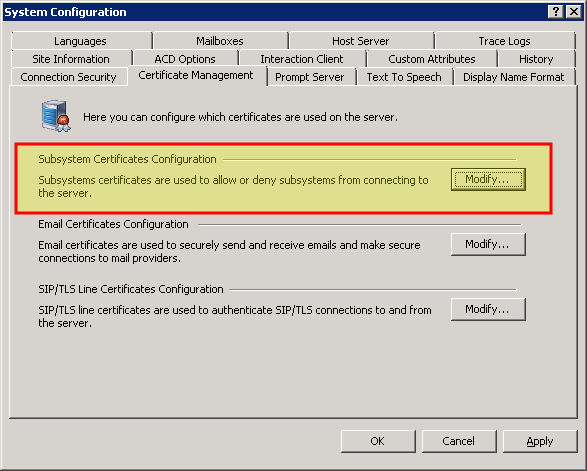
Double-click the Configuration item. The System Configuration dialog box appears.

-
Click the Certificate Management tab.
-
In the Subsystem Certificates Configuration area, click Modify. The Subsystem Certificates dialog box appears.

-
Click the New certificate from the Interaction Media Server that you configured to communicate with this CIC server.
-
Click Trust. The system now trusts the certificate from the specified subsystem.
-
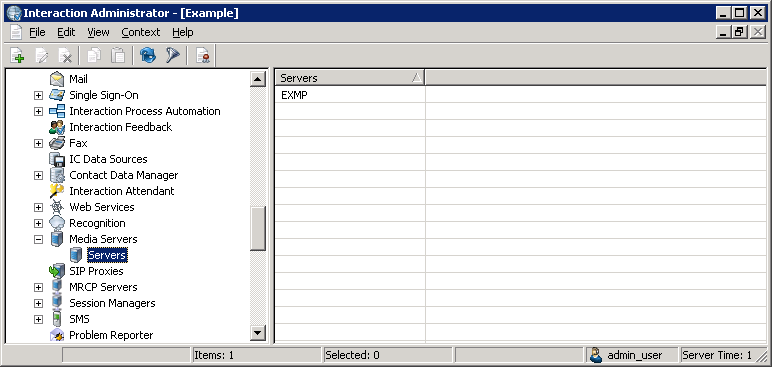
On the Subsystem Certificates dialog box, click Close. The specified Interaction Media Server appears in Interaction Administrator under the Media Servers container and can now host sessions from the CIC server.
Note:
It can take up to 2 minutes for the Interaction Media Server certificate to appear in Interaction Administrator under the Media Servers object.