


- Contents
Interaction Recorder Technical Reference
Playback a screen recording associated with a call
To playback a screen recording associated with a call, from the call
playback window, click the Related Recording Icon  to
display the related recordings. Select a related screen recording to begin
playback. The screen recording playback window with audio is displayed.
to
display the related recordings. Select a related screen recording to begin
playback. The screen recording playback window with audio is displayed.
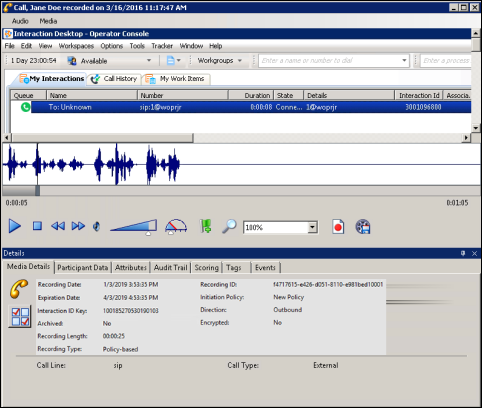
The audio controls for the recording are available. The Audio and Screen Recording stay in sync when played. If you are playing the audio through a station handset or headset and use the screen playback controls, such as forward or back, audio and video will go out of sync. To avoid audio and video going out of sync, use your computer speakers for audio playback.
The interaction Details pages are displayed at the bottom of this window for your reference. You can use the Scoring page to add a Questionnaire or to Score this recording.
Note
If a Screen Recording is selected for playback before the Store at Location
has been completed, a message is displayed that the recording media is
unavailable and to retry opening the recording again.