

- Contents
Web Portal Marquee Installation and Configuration Guide
Enable IIS for Interaction Web Portal
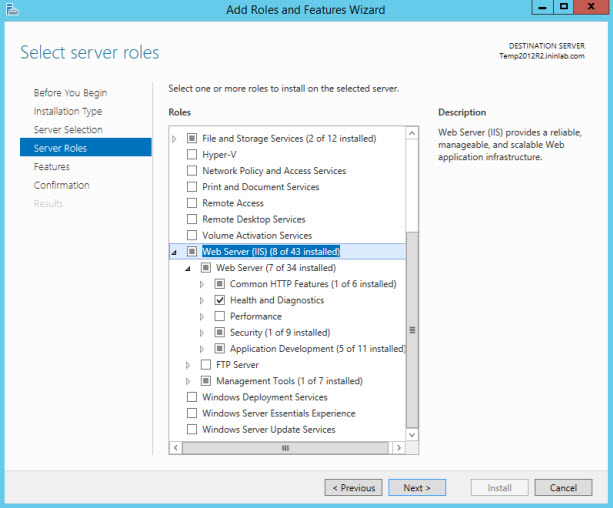
Enable IIS for Windows Server 2012 R2
-
From the Start menu, select Administrative Tools > Server Manager.
-
Select Add roles and features from the Dashboard.
-
Select Next twice.
-
Select Server Roles.
-
In the Roles area, select:
-Web Server. Under Web Server select:
- Common
HTTP Feature - Under Common HTTP
Feature, select Static Content,
Default Document, Directory
Browsing, and HTTP Errors.
- Application Development - Under
Application Development, select
ASP .NET,
.NET Extensibility,
ASP, CGI,
ISAPI Extensions,
ISAPI Filters,
and Server Side
Includes.
- Health and Diagnostics - Under
Health and Diagnostics select
HTTP Logging,
and Request Monitor.
- Security - Under Security,
select Request Filtering.
-Management
Tools. Under Management Tools,
select IIS Management Console.
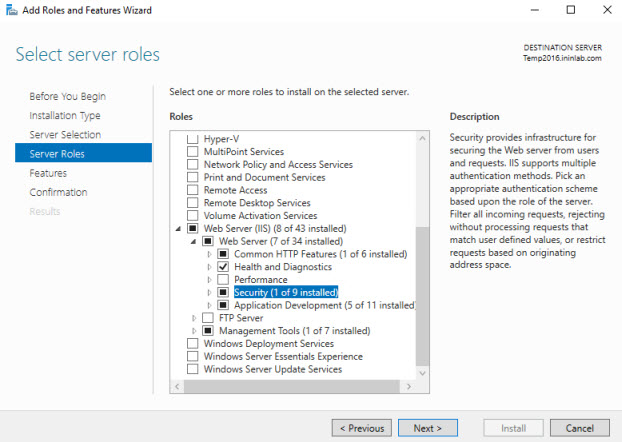
Enable IIS for Windows Server 2016
-
From the Start menu, select Administrative Tools > Server Manager.
-
Select Add roles and features from the Dashboard.
-
Select Next twice.
-
Select Server Roles.
-
In the Roles area, select:
-Web Server. Under Web Server select:
- Common
HTTP Feature - Under Common HTTP
Feature, select Static Content,
Default Document, Directory
Browsing, and HTTP Errors.
- Application Development - Under
Application Development, select
ASP .NET,
.NET Extensibility,
ASP, CGI,
ISAPI Extensions,
ISAPI Filters,
and Server Side
Includes.
- Health and Diagnostics - Under
Health and Diagnostics select
HTTP Logging,
and Request Monitor.
- Security - Under Security,
select Request Filtering.
-Management Tools. Under Management Tools, select IIS Management Console.