


- Contents
IPA Work Item Client Help
IPA Work Item Client interface
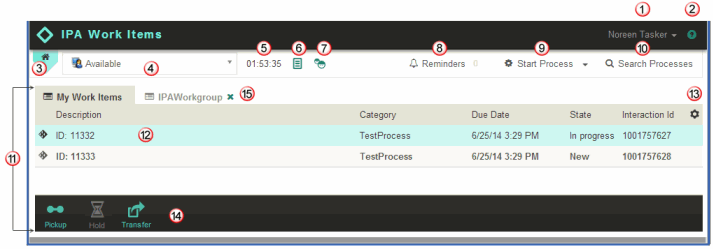
You manage work items and start processes in IPA Work Item client using the various elements of its interface. You can change your Customer Interaction Center (CIC) status or manage your workgroup activation status. You can also add, arrange, and customize workgroup queue views.
|
1 |
User name |
Displays the CIC display name of the currently logged on user. Your display name can be different from the user name or ID you use to log on.
|
|
2 |
Help icon |
Search and view help for IPA Work Item Client. |
|
3 |
Ribbon control |
Reserved for future use. |
|
4 |
My Status drop-down list |
Displays your CIC user status and enables you to change your status. |
|
5 |
Time in status |
Displays how long you have spent in your current status. |
|
6 |
Status details |
Set status details such as a Forward Number, Until Date or Time, and Notes. |
|
7 |
Workgroup activations |
Change your workgroup activation status and display selected workgroup queue views. |
|
8 |
Reminders |
Displays a list of your current reminders. The number of your current reminders appears to the right of this control. |
|
9 |
Start Process |
To select and start a process, click Start Process. To select and start a process from a list of the ones you have most recently started, click the down arrow. |
|
10 |
Search Processes |
Search for and view information about currently running and completed process instances. |
|
11 |
My Work Items view |
Displays the work items currently assigned to you. |
|
12 |
Selected work item |
Your currently selected work is highlighted. |
|
13 |
Choose columns |
Choose the columns contained in the My Work Items and workgroup queue views. |
|
14 |
Queue control toolbar |
To pick up, hold, or transfer a work item, select a work item and then click the appropriate button. |
|
15 |
Workgroup queue view |
If you have the appropriate View Workgroup Queue rights, you can display views of the work items in selected workgroup queues. Note: You can close a workgroup queue view by clicking the "x" on its tab. |