


- Contents
Interaction Data Extractor Help
Save Logs
Your CIC administrator can set a server parameter in Interaction Administrator that hides the Save Logs command. Contact your CIC administrator for details.
If you experience a problem, you can generate an Interaction Data Extractor client log file, attach it to an email message, and send it your PureConnect Customer Care representative.
To generate a log file, from Interaction Data Extractor:
-
Click your user name, and then click Save Logs.
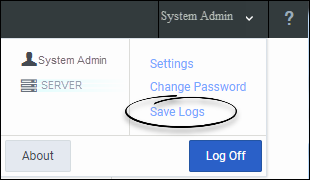
The Interaction Data Extractor client generates a log file named inin-logs.txt and places it in your browser’s Downloads directory. If you previously created this file, the Data Extractor client appends a number to the log file name. -
In your Windows Downloads directory, right-click the file and select Send to > Mail recipient.
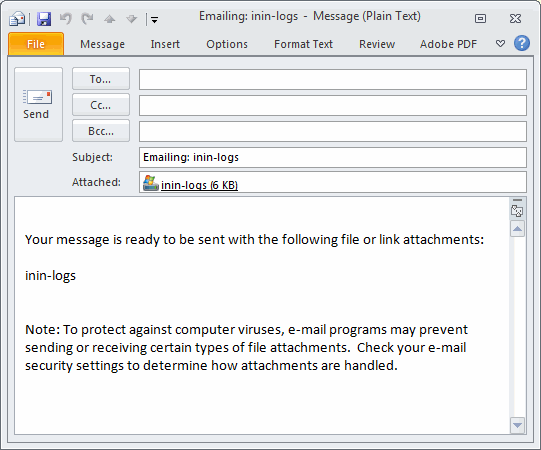
A new email message opens in your default email program. The selected log file is attached to the message.
-
Supply any other useful information or comments in the email message.
-
Address the message to your PureConnect Customer Care representative or other designated person, and click Send.
Note Contact your CIC administrator for the email address for all of your company’s problem reports.