


- Contents
Interaction Administrator Help
Enable Voicemail Password Prompts
The default Interaction Attendant menu does not prompt users for voice mail passwords. You can set up the system to prompt for passwords. There is one drawback: the audio prompt cannot be interrupted and users must wait until the prompt finishes before entering their security code.
To play an audio prompt for password:
In Interaction Attendant, complete the following tasks:
-
Select the Default Schedule node. Insert a new menu node by selecting the Insert menu, then selecting New Operation, then Play a Menu. A new menu node appears.
-
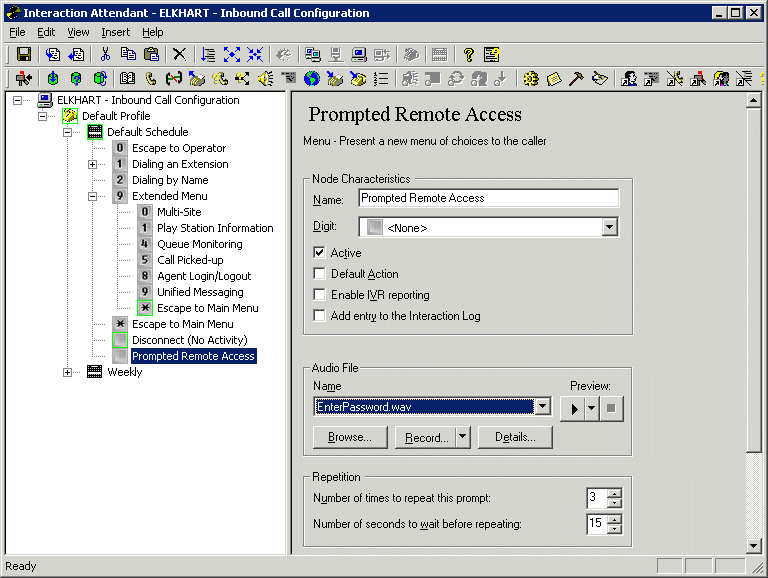
Interaction Attendant Prompted Remote Access node.
-
Rename the new menu node to Prompted Remote Access.
-
In the Audio File section of the Prompted Remote Access node, in the Name field, select the pre-recorded .wav file that prompts a user to enter an extension and password.
-
Note: This file is not supplied with Interaction Center. See the Interaction Attendant help for recording a prompt.
-
Right-click on the Prompted Remote Access node. From the Insert menu, select New Operation, then Remote Access. A Remote Access node is inserted below the Prompted Remote Access node.
-
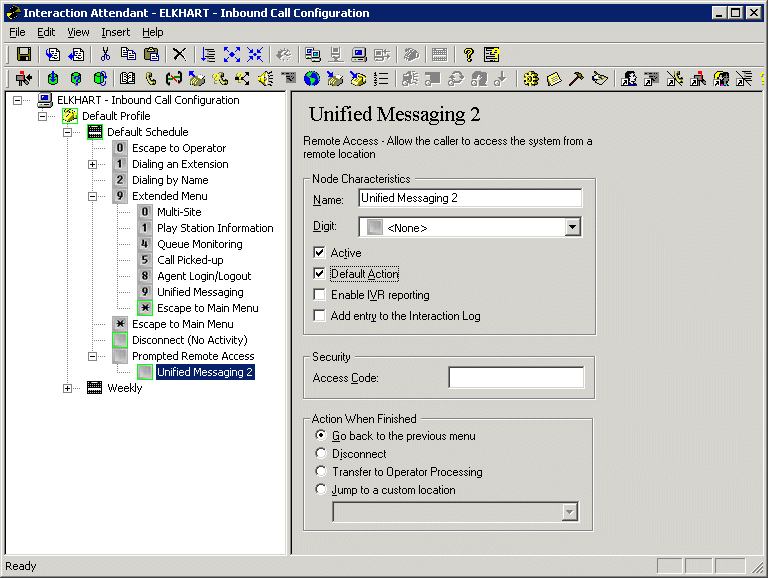
Rename this new Remote Access node to Unified Messaging 2.
-
In the Unified Messaging 2 node, select the Default Action check box.
-
Interaction Attendant Unified Messaging 2 node Default Action check box
-
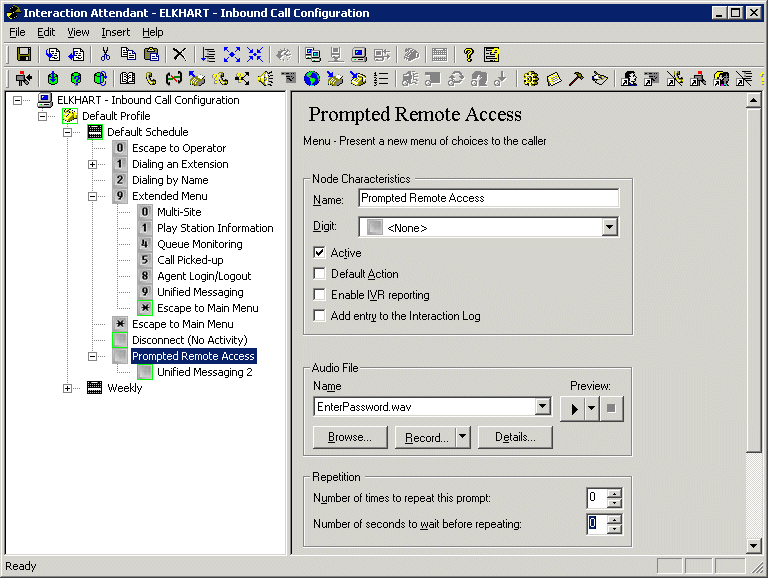
In the Prompted Remote Access node, set Number of times to repeat this prompt and Number of seconds to wait before repeating to 0.
-
Interaction Attendant Prompted Remote Access node Repetition options.
-
Select the Extended Menu node, right-click and select Insert > New Operation > Transfer to a Different Menu. Menu Transfer 1 is inserted in the Extended Menu.
-
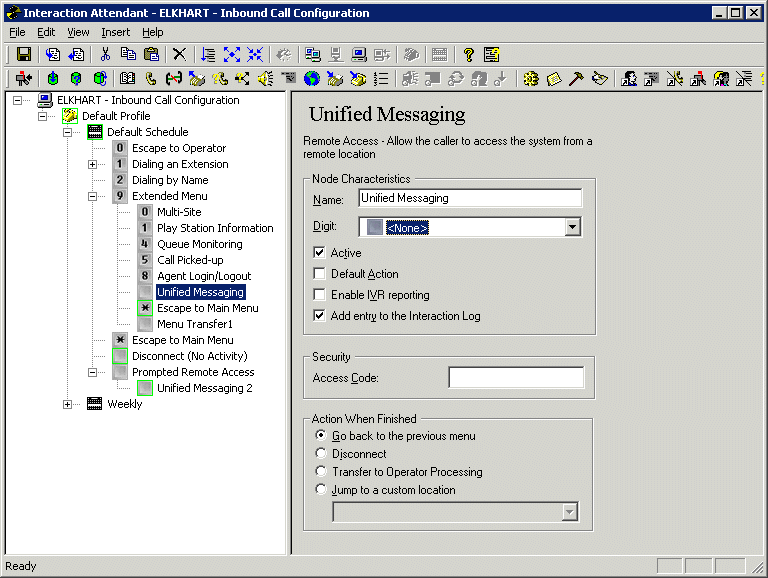
Select the original Unified Messaging node and set Digit to <None>.
-
Interaction Attendant original Unified Messaging node Digit setting
-
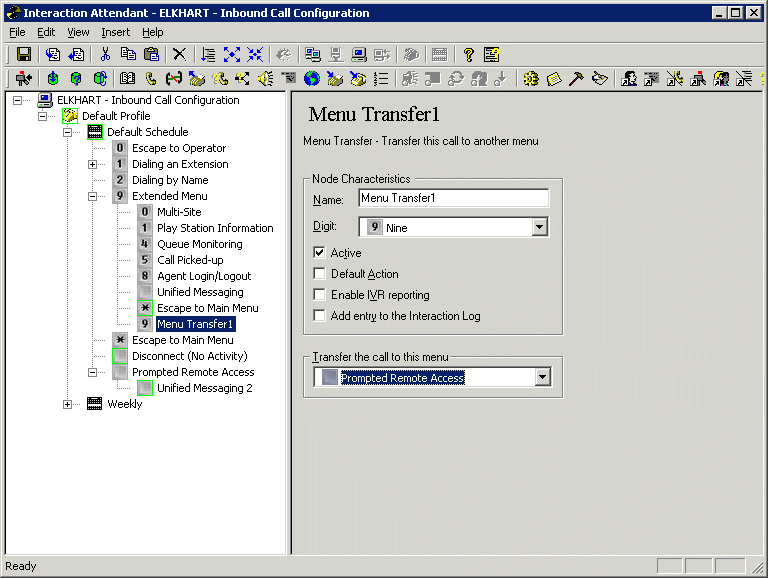
Select the Menu Transfer 1 node and set Digit to Nine. Set Transfer the call to this menu to Prompted Remote Access.
-
Interaction Attendant Menu Transfer 1 node Digit setting
-
From the File menu, select Publish.

-
In the Attendant dialog box, select Yes.
A status bar appears at the bottom of the Interaction Window until the publishing process finishes. A published Attendant profile completes the process of enabling voicemail password prompts.