


- Contents
Add and Remove Skills from an In-Queue Call
You can modify skill requirements while a call is in-queue by adding the Queue Update Skills action as an in-queue action under a workgroup transfer. This action allows you to add or remove skills without transferring the call to a different queue.
Warning: Due to current ACD Server limitations, when you update skills in an in-queue call, Interaction Attendant temporarily removes the interaction from the workgroup queue when updating the ACD skills. The interaction is reprocessed when Attendant returns it to the queue, and resets any existing ACD statistics such as Queue Timeout and the interaction's position in queue.
To add or remove skills from an in-queue call:
-
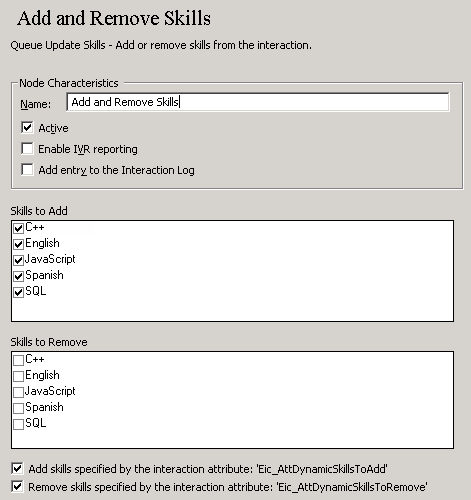
From a workgroup transfer node, click the Queue Update Skills icon or select Add/Remove skills for the interaction from the Queue Operations menu. The Queue Update Skills form appears below the transfer action.
-
In the Node Characteristics area, name the node, establish whether or not it is active, logged, or tracked for reporting purposes.
-
Name field. the label you enter here becomes the name of the node in the tree structure.
-
Active check box. By default, forms are "on", or "active", which means Interaction Attendant will process them. If you uncheck a form's Active check box, the name of the node turns gray in the tree to indicate that the form is inactive. Interaction Attendant and its handlers will therefore ignore the form and its children. Use this feature to save a configuration that you are testing. Inactive forms are not visible to callers. When a node is inactive, it appears grayed out in the tree view.
-
Default Action check box. At any given "level" in the tree structure, one node can be marked as the default action. The operation defined by the default node is performed if the caller does not press a key within the timeout period specified by that menu. The icon for default forms has a green border in the tree structure. Any node below a menu or schedule can be marked as the default action by checking the form's default action check box.
-
Enable IVR Reporting. This option determines whether or not reporting data will be collected when control passes through this node. Several IVR Reports summarize this information. IVR Reporting is disabled by default. Enable it to capture the date, time, and duration of time that the call remained in the node and its children. This option is hidden when Attendant is connected to a server that does not have reporting installed. For more information, see IVR Reporting Option.
-
Add entry to the Interaction Log. When this option is enabled, tracking information about this node is appended to the call's Interaction Log when the call enters this node. This helps track the path that a call took through Attendant. The Interaction Log is maintained for reporting purposes. See View the Interaction Log for details.
-
To add a skill to the interaction, in the Skills to Add area click to place a check mark next to the skill you want to add to this interaction.
-
To remove a skill from the interaction, in the Skills to Remove area click to remove the check mark next to the skill you want to delete from the interaction.
-
To add skills from a list specified by the dynamic interaction attribute 'Eic_AttDynamicSkillsToAdd', place a check mark in the box next to this option.
-
To remove skills from a list specified by the dynamic interaction attribute 'Eic_AttDynamicSkillsToRemove', place a check mark in the box next to this option.