


- Contents
Interaction Attendant Help
Import a prompt file
This topic explains how to import an existing .wav file into Interaction Attendant, to use as the default-language prompt. You can perform this procedure from any form or dialog that contains embedded audio controls.
-
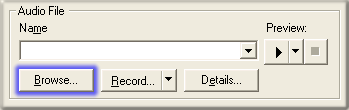
Press the Browse button.
-
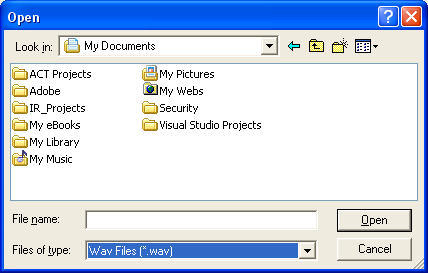
Use the standard File Open dialog box to select a wave audio file. Press Open.
-
The filename you selected now appears in the Name field of the embedded audio controls. You can play the file, view details about its size and format, etc. When you publish the updated configuration, the imported file will be saved on the server in the directory that Attendant uses to store wave files for the default language.
Limitations
-
-
You can import wave audio (.wav) files only. Sound files in other formats cannot be imported.
-
Attendant assumes that the imported file was recorded in the server's default language. In this release of Interaction Attendant, you cannot import a file and assign it to a non-default language.
-
Attendant copies imported files to the server when the configuration is published.
-
Related Topics