


- Contents
Microsoft Outlook Interaction Desktop Add-In Installation and Configuration Guide
Installation
Follow these instructions to install the Microsoft Outlook Interaction Desktop Add-In.
Installation Prerequisites
Before installing the Microsoft Outlook Interaction Desktop Add-In, make sure that the prerequisites described in Requirements are fulfilled.
-
On the client workstation, browse to the share drive on the IC Server.
You must choose the appropriate subdirectory for 32- or 64-bit applications, for example,
\\servername\IC_UserApps_32bitor\\servername\IC_UserApps_64bit.The following figure shows an example of the share drive:

-
Run setup.exe.
A dialog box opens showing the options that you can install. The following example shows the Outlook Plugin for IC User Applications 2015 R1:

-
Select the Outlook Plugin for IC User Application to install, and then click Start.
When installation is complete, the dialog box displays the message:
Finished processing installs for client workstation applications and selected language plug-ins, if applicable.
-
Click Exit.
-
After installation, select File in Outlook to verify that the Interaction Desktop Add-In has a properties page, as shown in the following figure:
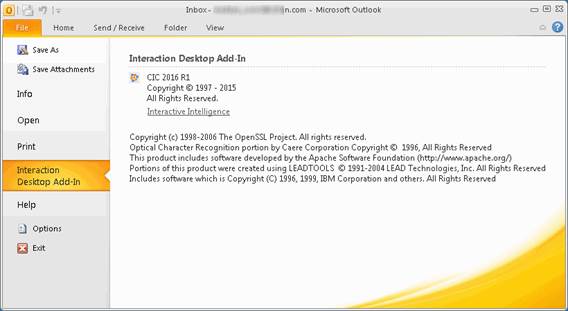
This page has no options that you can configure.
The Home tab of the main Outlook window also has an Interaction Client tool as shown in the following figure:
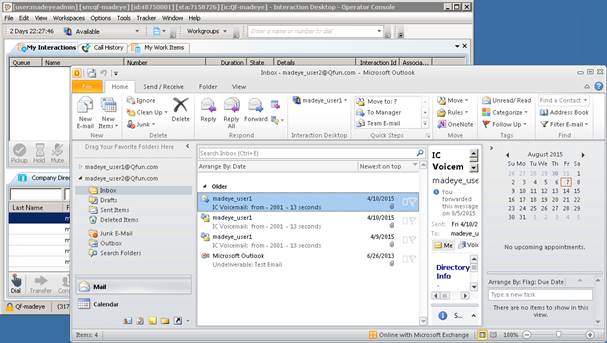
After you sign in, similar Interaction Desktop tools are available in message windows, contacts, and meeting invitations.