

- Contents
Interaction Dialer Installation and Configuration Guide
ODS Hardware and Software Requirements
Hardware Requirements
The hardware requirements for an Outbound Dialer Server are the same as for CIC. For more detailed information, see the CIC Installation and Configuration section of the CIC Documentation Library at help.genesys.com/pureconnect.
CIC Server Prerequisite
Do not install the Interaction Dialer 2018 R4 ODS component until you have installed CIC 2018 R4.
The ODS installation procedure assumes that CIC 2018 R4 is installed and fully configured If not, please refer to IC Installation and Configuration Guide for installation assistance.
License Prerequisites
You must acquire or update a license file for each CIC server that is or will be configured as an Outbound Dialer (ODS) server. The Central Campaign Server does not require a license file. See Server License Prerequisites and Licenses used by Dialer and Scripter.
Switchover Considerations
Special considerations apply when installing Dialer server in a switchover environment. If you do not use a switchover server, you can ignore this section.
We recommend that you install Dialer server on both the primary and secondary systems before starting services on the secondary machine. If Dialer server is not installed on the primary, the secondary machine will not show Dialer processes or Dialer server parameters.
Before installing Dialer server on a switchover pair, break the switchover or unplug the network cable. Otherwise, switchover may wipe Directory Services entries before you can install it on the other machine. This happens especially when the "Dialer Campaign Server" server parameter is used.
Since the Dialer server install is manipulating Directory Services and handlers, the switchover pair needs to be broken prior to the install and any Dialer server release that is being applied to the CIC Server.
If CIC is left running during the install, the Dialer subsystems will not automatically start at the end of the install. You must restart the IC Service to bring the Dialer subsystems up. As you are restarting IC, you should do this at a strategic time that least affects users.
When a switchover occurs, a dialog will pop in Interaction Scripter.NET Client to alert agents that a switchover occurred and Dialer statistics in Interaction Dialer views in Interaction Center Business Manager will be lost. Statistic rules start over again after a switchover because statistics on the previous primary server are no longer available.
An agent using Scripter in Interaction Connect is not notified. Some controls may become temporarily unavailable if the switchover requires a subsystem to restart. No downtime should occur for the agent.
Server License Prerequisites
Interaction Dialer is a secure product that requires license authorization. License files on each Dialer server / CIC server govern the operational availability of Interaction Dialer, Interaction Scripter .NET Client, and other components such as the availability of Interaction Dialer views in Interaction Center Business Manager.
Scripter in Interaction Connect does not require an extra license. A user must have the Customize Client security right to view the Scripter tab in Interaction Connect.
Since CIC and Interaction Dialer use the same system management module for licensing, administrators can manage licenses on the CIC Server via Interaction Administrator and flexibly allocate those licenses. As your business changes and grows, you can easily view the status of your server licenses. This helps to better manage your budgeting concerns when increasing counts of features and functions on your system.
Each Dialer server has its own license.dat file. Interaction Dialer uses the same license file as the CIC server. To add Dialer or Scripter authorization to an existing server license, you need to obtain an upgrade license from your authorized reseller or from the PureConnect web site.
Your PureConnect reseller can provide a license file for each Dialer server that implements the software options you have purchased. Certified Technical Implementers can obtain license files by the Activation File Management Tool, which is available to customers at https://genesyspartner.force.com/customercare/GenesysCommunityLogin and to partners at https://genesyspartner.force.com/partner/Home.
-
The Central Campaign Server does not require a license file.
-
Do not install any other software until updated license files have been applied to your Dialer/CIC servers.
License-related Procedures
The procedure used to acquire, upgrade and install CIC license files is documented in the PureConnect Licensing Technical Reference. (Since that document is updated frequently, we recommend that you download the latest version from the Technical Reference Documents section of the CIC Documentation Library at help.genesys.com/pureconnect.) For more specific information on Dialer licenses, see the Licenses used by Dialer and Scripter section of this document.
Licenses used by Dialer and Scripter
Feature and access licenses govern the operational availability of Interaction Dialer, Interaction Scripter .NET Client, and Scripter in Interaction Connect. CIC uses an application server license model that allows features and functions to be turned on using licensing rather than by installing modules at a later time frame. This makes it easier for system administrators to add functionality to the system through licensing and subsequent configuration.
Feature Licenses
Interaction Dialer is made available on a CIC server by feature licenses.
|
License Name |
Description |
|
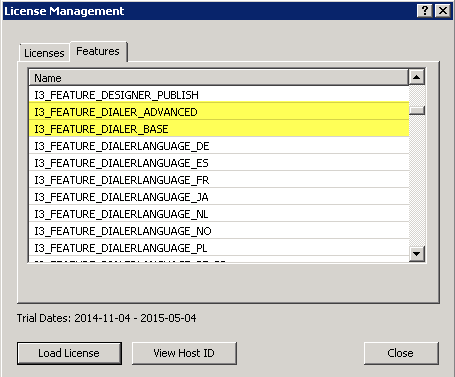
I3_FEATURE_DIALER_BASE and I3_FEATURE_DIALER_ADVANCED |
In order for a CIC server to function as an automated Outbound Dialer Server, you need to load both of these feature licenses. |
|
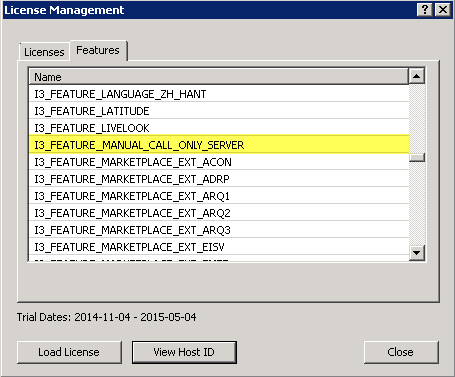
I3_FEATURE_MANUAL_CALL_ONLY_SERVER |
In order for a CIC server to function as a Manual Calling Server, you only have to load this feature license. |
Note: Other than being limited to only making manual calls, the Manual Calling Server License provides the exact same Interaction Dialer feature set as the standard Outbound Dialer Server license.
Access Licenses
Interaction Dialer makes use of Interaction Center's licensing system to control the availability of various components to the system's users. The Dialer specific access licenses and their functions are as follows:
|
License Name |
Description |
|
I3_ACCESS_DIALER_ADDON |
Allows agents to login to campaigns. This license is also required to access Dialer containers in IC Business Manager. Without this license, the Dialer Administrator workspace is not created and administrator views are not available. |
|
I3_ACCESS_INTERACTION_SCRIPTER_ADDON |
Allows the interaction Scripter .NET client to be run. Enables Scripter in Interaction Connect. |
|
I3_ACCESS_DIALER_SUPERVISOR_PLUGIN |
Allow Interaction Center Business Manager Dialer views to be accessed. |
Language Licenses
If you plan to install Interaction Dialer with a language pack, then you will need to load the appropriate language license key
|
License Name |
Description |
|
I3_FEATURE_DIALERLANGUAGE_ZH_HANT |
Chinese (Traditional) |
|
I3_FEATURE_DIALERLANGUAGE_ZH_HANS |
Chinese Simplified |
|
I3_FEATURE_DIALERLANGUAGE_DA |
Danish |
|
I3_FEATURE_DIALERLANGUAGE_NL |
Dutch |
|
I3_FEATURE_DIALERLANGUAGE_FR |
French |
|
I3_FEATURE_DIALERLANGUAGE_DE |
German |
|
I3_FEATURE_DIALERLANGUAGE_IT |
Italian |
|
I3_FEATURE_DIALERLANGUAGE_JA |
Japanese |
|
I3_FEATURE_DIALERLANGUAGE_KO |
Korean |
|
I3_FEATURE_DIALERLANGUAGE_NO |
Norwegian |
|
I3_FEATURE_DIALERLANGUAGE_PL |
Polish |
|
I3_FEATURE_DIALERLANGUAGE_PT_BR |
Portuguese Brazilian |
|
I3_FEATURE_DIALERLANGUAGE_RU |
Russian |
|
I3_FEATURE_DIALERLANGUAGE_SR |
Serbian |
|
I3_FEATURE_DIALERLANGUAGE_ES |
Spanish |
|
I3_FEATURE_DIALERLANGUAGE_SV |
Swedish |
|
I3_FEATURE_DIALERLANGUAGE_TR |
Turkish |
License verification
Once you have installed the Dialer server and loaded the appropriate license, you can verify the license installation in Interaction Administrator by accessing the License Management command on the File menu and selecting the Features tab.
|
|
|
|
Outbound Dialer Server |
Manual Calling Server |
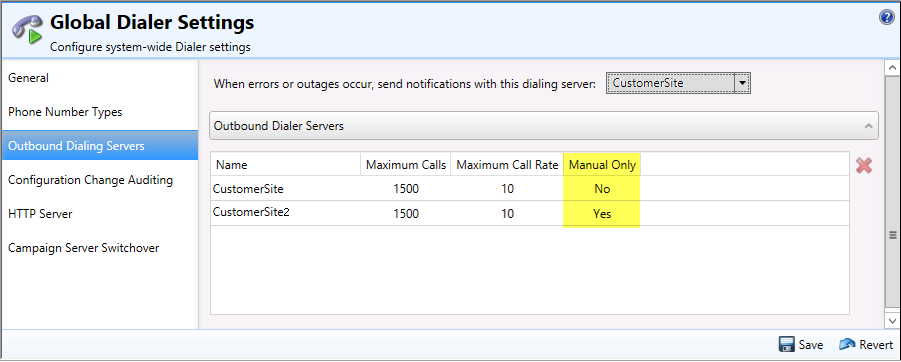
You can verify the server configuration in Interaction Administrator by accessing the Interaction Dialer>Advanced Interaction Dialer>Global Dialer Settings container and selecting the Outbound Dialer Servers tab. The table on this tab contains a column titled Manual Only. If you are running a Dialer server with the Manual Calling feature license, then the Manual Only column will display Yes. If you are running a Dialer server with the standard Outbound Dialing Server feature license, then the Manual Only column will display No.