


- Contents
Interaction Feedback Technical Reference
Create a new custom question
To create a new custom question for your survey:
-
On the Create Question Wizard Welcome page, click Next.

-
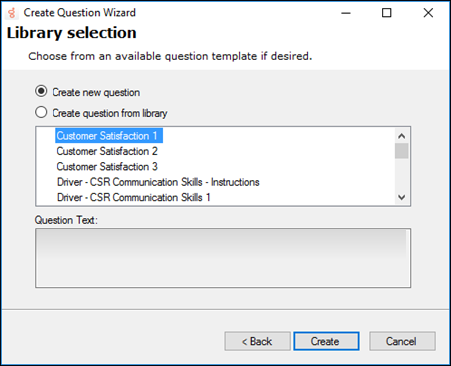
On the Library selection page, select Create new question, and click Next.
-
On the Question Settings page, configure the Question type and Question settings.

- Question Type
-
Select the type of question: True/False, Multiple Choice, Numeric Range, or Free-form (recording).
- Question Settings
-
- Name
-
Type the name of the question.
- Description
-
Type a description for the question.
- Question Prompt
-
From the drop-down list, select the question prompt for your new question, or create a new prompt by selecting [add recording].
You can preview available prompts by clicking the play button
 .
.Use the Prompt Edit dialog to add prompts to surveys and questions. When you select [add recording].

The Prompt Edit dialog is displayed.

- Prompt Audio
-
To record an audio prompt from your telephone, select Station handset record, and click Record. To use an existing audio file for your prompt, select WAV file selection, and click Browse to select the file path.
- Listen to Prompt
-
To listen to the prompt, in the Play To box, select the output device, and click Play.
- Prompt Information
-
Type the name for this prompt in the Name box. Type the full text of this prompt in the Enter text-to-speech that will play box.
When you have completed the Prompt Edit dialog, click Save.
- No Input Prompt
-
From the drop-down list, select the prompt that the customer will hear if there is no response to the question, or create a new prompt by selecting [add recording]. If you select <Default> a system prompt will play.

You can preview available prompts by clicking the play button
.
Or you can create your own No Input prompt by selecting [add recording].
- No Match Prompt
-
From the drop-down list, select the prompt that the customer will hear if the response is invalid, or create a new prompt by selecting [add recording]. If you select <Default> a system prompt will play.
You can preview available prompts by clicking the play button
.
Or you can create your own No Match prompt by selecting [add recording].
- Question Weight
-
Select the number for which you want to weight the importance of this question. The Question weight is used as a multiplier to calculate the final score for a question. For example, if the question is scored as a 9 with a weight of 2, the final score for that question is 18.
The Question Weight must be a non-zero value. It can be expressed as a decimal, for example 0.33, 1.5, or 5.55.
To not have the score for a question considered in the final score, use the Ignore score for question check box.
- Ignore score for question
-
Select this box to not have the score for this question considered in the calculations for the final score of the survey.

-
Click Next.
The Question Scoring page is displayed.

The values to set for scoring vary depending on the type of question you selected: True/False, Multiple Choice, Numeric Range, or Free-form (recording).
-
When you have completed entering the scoring values, click Next.
The Select categories for the question page is displayed.

-
Under Question Categories, in the User Defined Categories box, select the categories in which you want this question to be included. Click the arrow to add the categories to the Selected Categories box.
-
When you have finished, click Create. Your question is created and added to your survey.

-
To create another question, select the Create another question check box.
-
Click Finish.
Questions are added under Survey Definition below the survey, and the question type is indicated by an icon—for example:
-
 Numeric Range question
 -
 True/False question
 -
 Multiple Choice question
 -
 Free Form recording
Note:
When the customer is given the survey, the configured prompts are presented. You can localize the Free-form recording confirmation prompts by configuring the value of the CSSurvey: Clear Language For Survey server parameter. The server parameter default value of Yes clears the language attribute of the call. If you do not want to clear the language attribute of the call when a survey begins, set the server parameter value to No. This allows the language attribute of the call to be used to localize the Free-form confirmation prompts. -