


- Contents
Interaction Media Streaming Server Technical Reference
Configure Music On Hold From Interaction Media Streaming Server External Audio Source
After you define external audio sources through the web interface of Interaction Media Streaming Server and define the server through the MRCP Servers object in Interaction Administrator, you can use the external audio sources as music on hold for workgroups.
To configure music on hold from Interaction Media Streaming Server external audio source
-
Open Interaction Administrator and log on to Interaction Administrator with credentials that have administrator permissions. The Interaction Administrator window appears.
-
In the People container, click Workgroups and in the right pane, double-click an existing workgroup for which to configure the music on hold source. The Workgroup Configuration dialog box appears.

-
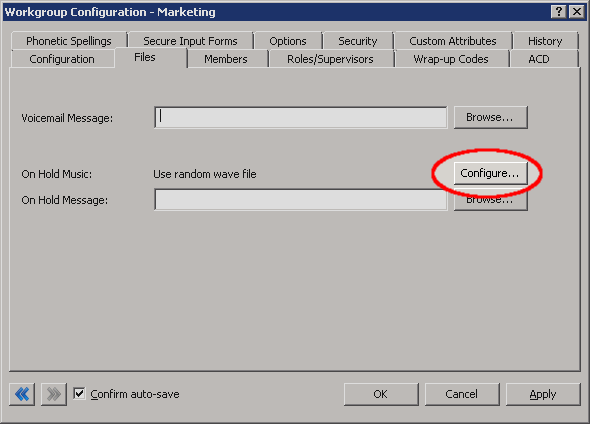
Click the Files tab.
-
Click Configure. The Audio Configuration dialog box appears.

-
Click Use external audio source.
-
In the Use external audio source list box, click the Interaction Media Streaming Server external audio source that you want callers to hear when placed on hold.
Optionally, you can select the Only play the audio source for check box and specify the number of seconds to play the audio from the external audio source. For example, you can use the external audio source for 120 seconds, play an On Hold Message, and then continue using the external audio source.
-
Click OK to save your changes and return to the Workgroup Configuration dialog box.