


- Contents
Interaction Recorder Remote Content Service Installation and Configuration Guide
Configure Interaction Recorder Remote Content Service Through Interaction Administrator
To configure Interaction Recorder Remote Content Service through Interaction Administrator
-
Open Interaction Administrator and log on as an administrative user.
-
In the navigation pane, expand the Interaction Recorder container.
-
In the Interaction Recorder tree, click the Remote Content Server object.

-
In the details pane, double-click the entry for the Interaction Recorder Remote Content Service instance that you want to configure. The Remote Content Server Configuration dialog box for the selected server appears.
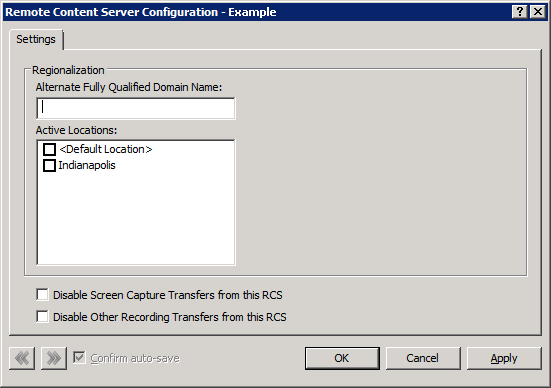
Alternate Fully Qualified: If you are using PureConnect Cloud, specify a replacement fully-qualified domain name (FQDN) for this Interaction Recorder Remote Content Service server in your domain. In a PureConnect Cloud environment, this feature allows Interaction Recorder to retrieve and play the recording from this Interaction Recorder Remote Content Service server.
Active Locations: If selected, you want the Interaction Recorder Remote Content Service server to move recordings from Interaction Media Servers for that region.
Disable Screen Capture Transfers from this RCS: If selected, you want to prevent this Interaction Recorder Remote Content Service instance from transferring screen recordings from the computers on which they are recorded.
Disable Other Recording Transfer from this RCS: If selected, you want to prevent this Interaction Recorder Remote Content Service instance from transferring any recordings—other than screen recordings—from the servers on which they are recorded.
Note:
CIC uses only those Interaction Recorder Remote Content Service instances listed as Active. However, you can configure any listed instance, regardless of its state. -
To view or adjust the configuration for another defined Interaction Recorder Remote Content Service server, click << or >>.
-
To have Interaction Administrator save your configuration settings automatically as you cycle through Remote Content Service servers, select the Confirm auto-save check box.
-
When finished, click OK.