


- Contents
CIC Integration with SAP CRM Installation and Configuration Guide
Troubleshooting
Web chat sessions remain open
If web chat sessions are remaining open longer than expected, it’s likely because agents are not closing them properly. Train agents to close the web chat tabs once they complete an interaction.
Two or more phone interactions in one record
When running reports on interactions, two or more phone interactions are showing up in the same interaction record. The integration creates duplicate phone interaction records when agents don’t end one phone interaction before starting the next.
CIC does not allow agents to choose when to go into wrap-up mode or how long to stay there. However, SAP DOES allow agents to stay in wrap-up mode as long as wanted. Because of this system incompatibility, train agents to end the interaction before going back to an available status.
Action items cannot be placed on hold
SAP does not support action items being placed on hold. Although the Hold button continues to appear in the SAP Interaction Toolbar, the button does not work for action items.
Action items can be placed on hold in the CIC client. However, placing an action item on hold in the CIC client does not have any impact on the action item in SAP.
Agents cannot log on
Check these items if agents experience logon issues:
-
After updating the integration from GA to any SU, the service stops and agents cannot log on. After installing an update, you must run the configuration utility.
-
Ensure that the agent user names in SAP and CIC are an exact match. This is a case-sensitive match.
-
Verify that the CIC user is not excluded from the Company Directory. In Interaction Administrator, clear the Exclude from Directory checkbox on the Configuration tab of the User Configuration dialog box.
Integration not working correctly
New CIC agents must have a valid status for the integration to work correctly. The agent’s status can be set two ways:
-
By the agent setting a status in the CIC client
-
By an administrator setting the agent’s status in Interaction Administrator or IC Business Manager
Unauthorized errors (402) on the web service
-
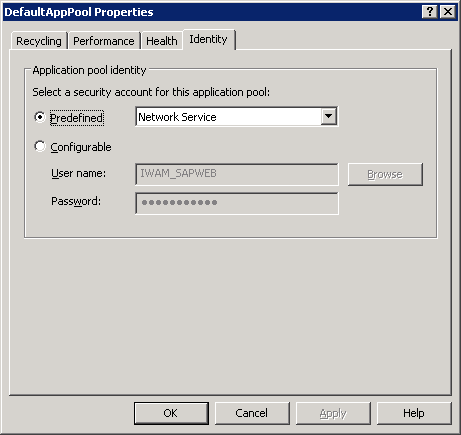
Set the default application pool’s identity to Predefined and select Network Service.
-
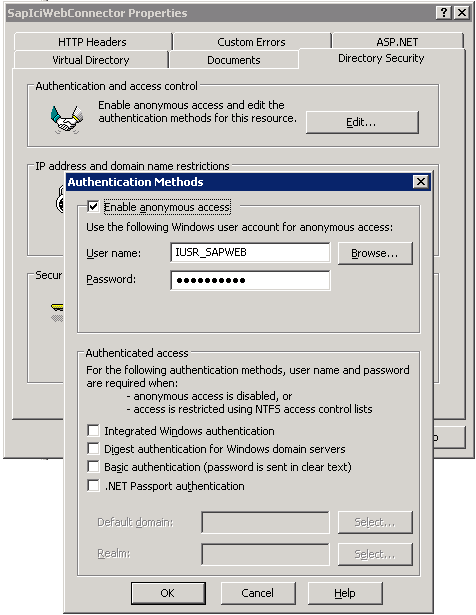
Enable the anonymous access by doing the following:
-
Open IIS and navigate to the defined web service SapIciWebConnector.
-
Right-click the service and select Properties.
-
Select the Directory Security tab and click Edit within the Authenticate an access control group box.
-
Select Enable anonymous access.
-
Set User ID to IUSR_ plus the name of the server running IIS.
Example: IUSR_<Server Name>. -
Everything else remains unchanged.
-
-
Ensure the user account in step 2 is defined on the local machine and the rights are properly set.
-
If all else fails, contact the network administrator to make sure that the Internet settings and proxy settings are properly configured on the local machine.
Contact technical support
If any troubleshooting techniques are unsuccessful, contact a technical support agent. The technical support staff likely needs one or more of the following files:
-
Web.config installed with the SAP Integration Web Connector
-
ININIntegrationService.exe.config
-
SapIci.ininlog
-
SessionManager.ininlog (If there are login issues)
-
IP.ininlog (For email or reject problems)
-
Export from the CRM_ICI_TRACE
For more information, see Troubleshoot log files.