


- Contents
Invoices Help
Reprint a Check
Use the Check Register window to reprint one or more checks. Ensure that you have the magnetic cartridge used for checks installed in your printer and the correct paper stock in the paper tray.
To reprint a check
-
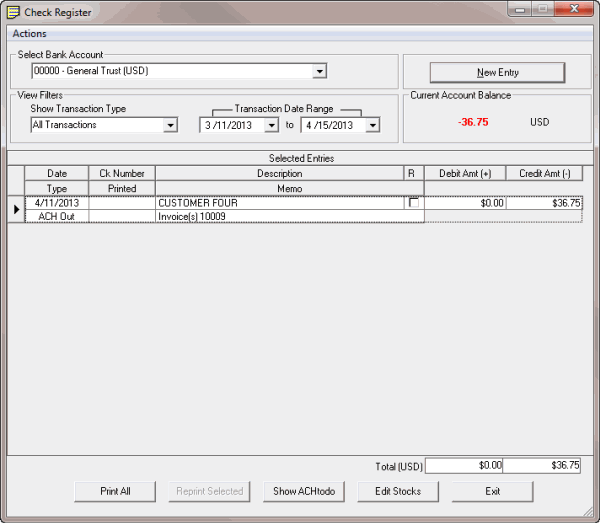
In the Invoices window, from the View menu, click Check Register. The Check Register window appears.
-
In the Select Bank Account list box, click the bank account for which to view transactions.
-
In the Show Transaction Type section, click Checks.
-
In the Transaction Date Range section, type the beginning and ending transaction date to view. Transactions that meet the specified criteria appear in the Selected Entries data grid.
-
In the data grid, click the check to reprint.
Tip: To select multiple sequential checks, press and hold the Shift key and click the first and last sequential check. To select multiple non-sequential checks, press and hold the Ctrl key and click each individual check.
-
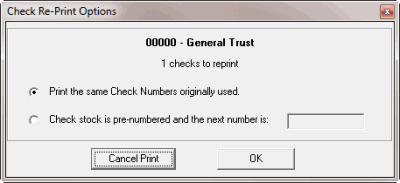
Click Reprint Selected. The Check Re-Print Options dialog box appears.
-
Do one of the following:
-
To use the same check numbers that you used originally, click Print the same Check Numbers originally used.
-
For pre-numbered check paper, click Check stock is pre-numbered and the next number is: and then, in the box, type the starting check number. The Invoices program doesn't print the check numbers on the pre-numbered check paper. The Invoices program does use the check number you type in the box to record the check numbers in the check register.
-
Click OK. The Print dialog box appears.
-
Modify the settings as necessary and then click Print. The Invoices program prints the checks. The Invoices program records date printed and the check numbers in the Selected Entries data grid.