


- Contents
Latitude Help
Adjust an Account Balance
Use the Balance Adjustment menu option to adjust a debtor’s account balance information without creating a separate transaction. You must have the appropriate permissions to adjust an account balance. The system displays balance adjustments in the following areas (audit trail):
-
As an adjustment note on the account.
-
In the Accrued column of the balance breakdown.
-
In the Payment Summary and Payment Detail windows.
To adjust an account balance
-
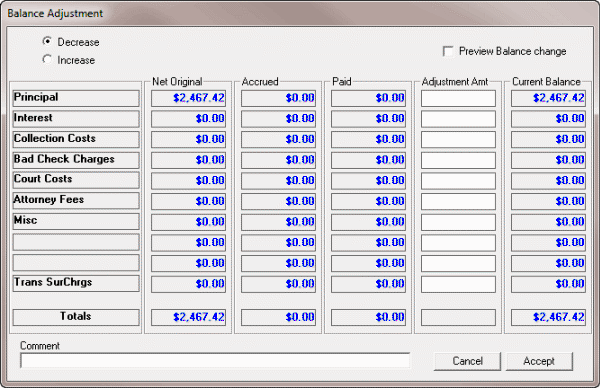
With an account displayed in the Work Form, from the DE menu, click Balance Adjustment. The Balance Adjustment dialog box appears.
-
Do one of the following:
-
If the adjustment decreases the account balance, click Decrease.
-
If the adjustment increases the account balance, click Increase.
-
In the Adjustment Amt box, type the amount to adjust the corresponding bucket (for example, Principal).
-
To verify that the new balance is correct, select the Preview Balance change check box. The system calculates the accrued and current balance amounts and displays them in the Accrued and Current Balance boxes.
-
In the Comment box, type an explanation for the adjustment and then click Accept.