


- Contents
Latitude Help
Change Fees for a Single Payment
Use the Payment tab on the Account tab in the Payment Entry window to change the fees for a single payment. You can change the fee schedule or modify the fee percent or amount for one or more money buckets.
To change the fees for a single payment
-
In the Main Menu window, from the Data Entry menu, click Debtor Payments. The Payment Entry window appears.
-
Do one of the following:
-
If you know the account number, do the steps to Retrieve an Account by Account Number.
-
To search for an account using simple search, do the steps to Search for an Account Using Simple Search.
-
To search for an account using advanced search, do the steps to Search for an Account Using Advanced Search.
The Account tab in the Payment Entry window appears.
-
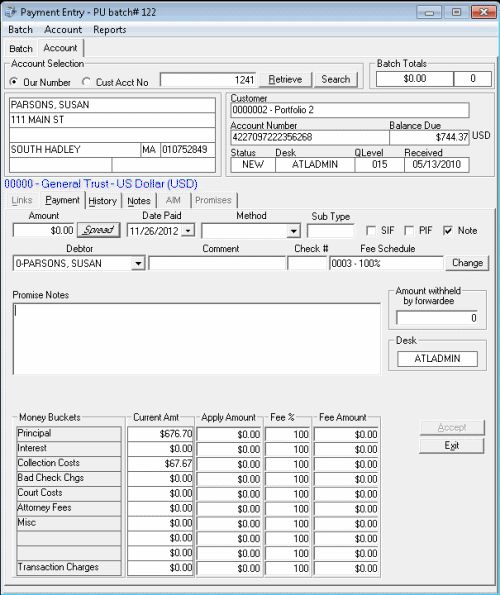
Click the Payment tab.
-
Click Change next to the fee schedule. The Fee Schedules window appears. The following example shows an age-based fee schedule.

-
Do one of the following:
-
To select an existing fee schedule, in the Select Fee Schedule list box, click the fee schedule. For more information about the remaining values, see Fee Code Schedule – Age Based, Fee Code Schedule – Balance Based, or Fee Code Schedule – Liquidation Based, depending on the type of fee schedule.
-
To create a fee schedule, click New and then do the steps to Add a Fee Schedule Code.
-
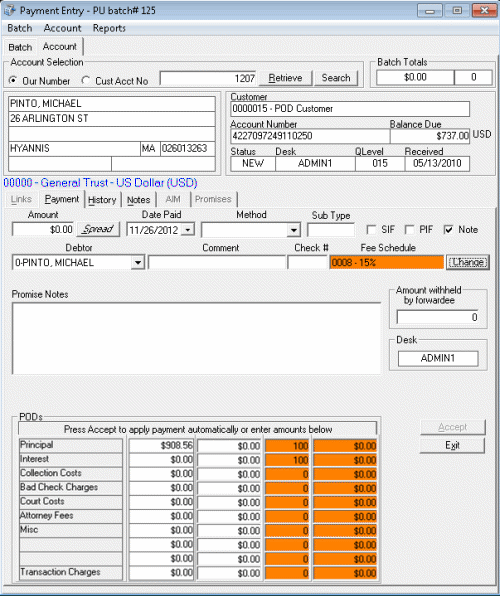
Click OK/Exit. In the Payment Entry window, the Fee Schedule, Fee % and Fee Amount boxes now have an orange background to indicate that you modified the values.
-
To change the fee percent or amount, on the Payment tab, do one of the following:
-
In the Fee % box, type a new fee percent and press the Tab key. Latitude adjusts the Fee Amount box to reflect the new percent.
-
In the Fee Amount box, type a new fee amount and press the Tab key. Latitude adjusts the Fee % box to reflect the new amount.
The Fee % and Fee Amount boxes now have an orange background to indicate that you modified the values.
-
Click Accept.