


- Contents
Latitude Help
Reverse a Payment
Use the History tab on the Account tab in the Payment Entry window to reverse a payment in a PUR or PCR batch.
To reverse a payment
-
In the Main Menu window, from the Data Entry menu, click Debtor Payments. The Payment Entry window appears.
-
Do one of the following:
-
If you know the account number, do the steps to Retrieve an Account by Account Number.
-
To search for an account using simple search, do the steps to Search for an Account Using Simple Search.
-
To search for an account using advanced search, do the steps to Search for an Account Using Advanced Search.
The Account tab in the Payment Entry window appears.
-
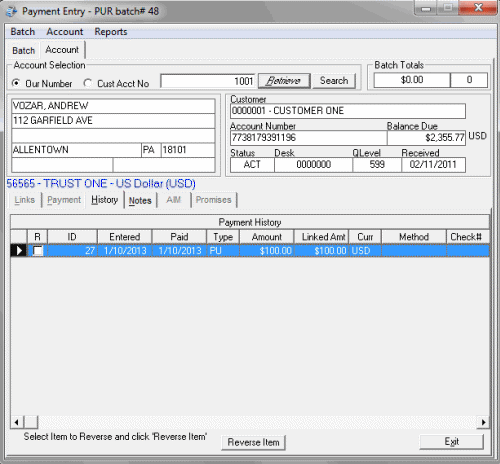
Click the History tab. Only payments that you can reverse appear in the data grid.
-
In the data grid, click a payment and then click Reverse Item. The Confirm Reversal dialog box appears.
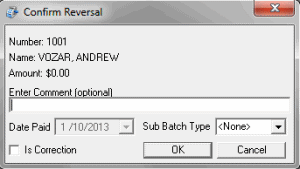
Enter Comment: More information about the payment reversal. This comment appears as a note on the debtor's account.
Date Paid: Payment reversal date.
Sub Batch Type: Optional code to categorize the batch type.
Is Correction: If selected, indicates that the payment reversal corrects a clerical error. If not selected, indicates that the payment reversal is for an NSF (check bounce). Ensure that you select this check box when transferring an overpayment to another account or refunding an overpayment.
-
Modify the information as necessary and then click OK. A confirmation dialog box appears.
-
Click OK. The payment reversal appears in payment history after processing the batch.