


- Contents
Latitude Help
Reverse Judgment on a Case
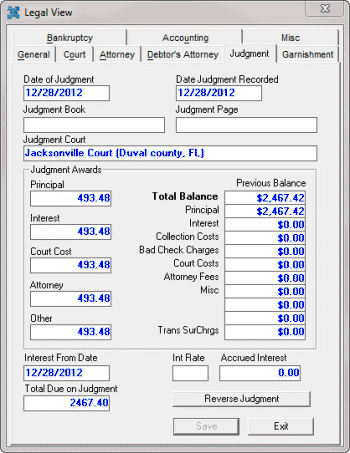
Use the Judgment tab in the Legal View dialog box to reverse judgment on an appealed case or when the court entered the judgment in error.
To reverse judgment on a case
-
With an account displayed in the Work Form, from the Info menu, click Legal Case Info. The Legal View dialog box appears.
-
Click the Judgment tab.
-
Click Reverse Judgment. The Reverse Judgment Wizard appears.

-
Do one of the following:
-
If the court dismissed the judgment, click Reverse Judgment.
-
If the court entered the judgment in error, click Correct Judgment.
-
Click Next. If the court included interest in the judgment, the Interest Options page appears.

-
Select the option to indicate the interest calculation method to apply. If applicable, specify the interest date or interest amount.
-
Click Next. The Review Judgment Reversal page appears.

-
Review the information and then do one of the following:
-
To change the information, click Back.
-
To reverse the judgment, click Reverse. A confirmation dialog box appears. Click Yes.