


- Contents
Latitude Help
Search for an Account by Status Code
Use the Simple Search tab in the Latitude Search - Search for Account window to search for an account by account status code.
To search for an account by status code
-
In the Main Menu window, click Work or press Alt + W. The Work Form appears. The Work Form appears.
-
From the Search menu, click Search or press Ctrl + F. The Latitude Search - Search for Account window appears.
-
Click the Simple Search tab.
-
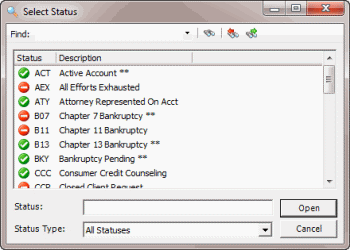
Click the
 icon at the end of the Status box. The Select
Status dialog box appears.
icon at the end of the Status box. The Select
Status dialog box appears.
-
To limit the list to a specific status type, in the Status Type list box, click the status type.
-
To search from the beginning of the list, in the Find box, type your search criteria and click the
 icon.
icon. -
To search forward in the list, select a status in the list, in the Find box, type your search criteria, and then click the
 icon.
icon. -
To search backward in the list, select a status in the list, in the Find box, type your search criteria, and then click the
 icon.
icon. -
Click the statuses to include in your search and then click Open. The Select Status dialog box closes and the number of selected statuses displays in the Status box on the Simple Search tab.
Tip: To select multiple sequential statuses, press and hold the Shift key and click the first and last sequential status. To select multiple non-sequential statuses, press and hold the Ctrl key and click each individual status.
-
Click Search. The results display on the Search Results tab. If the system doesn't find a match, it displays a message to that effect.