


- Contents
Latitude in the Cloud User's Guide
Share Files With Latitude in the Cloud
The Home Drive is a location in the AWS environment that allows you to share files on your local computer, network, or other media (for example, thumb drive) with Latitude in the Cloud. For example, you can copy files from your local computer, network, or other media (for example, thumb drive) to the Home Drive and import them into a Latitude application that has import functionality. You can also copy files from the Home Drive to your local computer, network, or other media.
Some Latitude applications save or download files to your local computer instead of the Home Drive (for example, letter templates). When saving or downloading files, note the location so that you know where to find them.
Important!
Genesys strongly recommends that you don't use the Home Drive as the
primary location for your files. The system doesn't back up the Home
Drive and cannot recover any lost or corrupt files.
To share files with Latitude in the Cloud
-
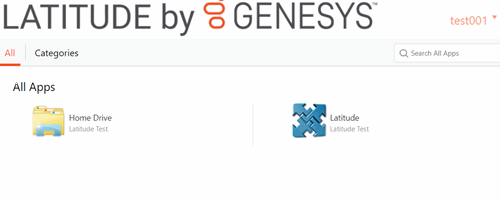
Open LATITUDE by Genesys on your desktop or in your web browser.
-
Click Home Drive.
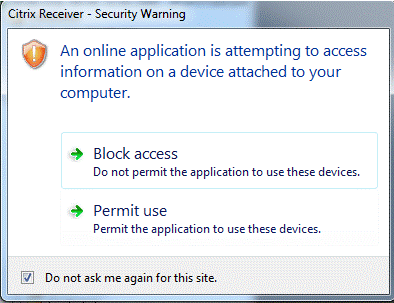
If it's your first time clicking this option, the Citrix Receiver - Security Warning dialog box appears. Click Permit use.
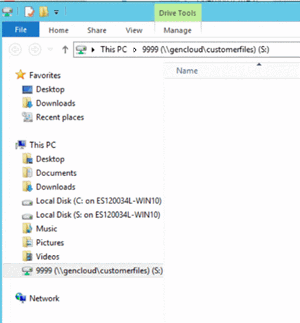
The File Explorer window opens to the S: drive, which is the Home Drive.
-
To copy files to the Home Drive, do the following:
-
On your C: drive; network; or other media, locate the files to copy.
-
Click one or more files to copy and then do one of the following:
-
Drag and drop the files to the S: drive.
-
Right-click the selected files and then click Copy. Right-click on the S: drive and then click Paste.
-
To copy files from the Home Drive, do the following:
-
On the Home Drive, locate the files to copy.
-
Click one or more files to copy and then do one of the following:
-
Drag and drop the files to your C: drive, network location, or other media.
-
Right-click the selected files and then click Copy. Right-click on the S: drive and then click Paste.