


- Contents
List Builder Help
Group Accounts
Use the Preview Numbers tab to group accounts in the query results.
To group accounts
-
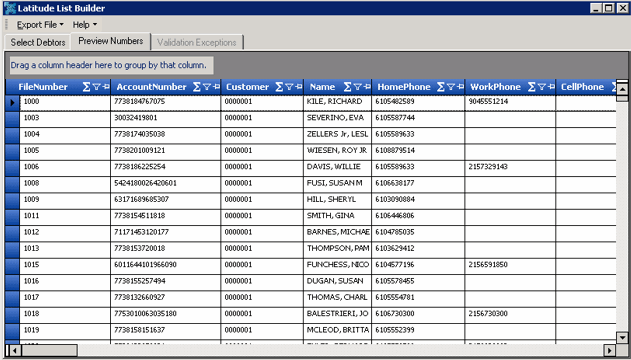
In the toolbar, click Run. The results appear on the Preview Numbers tab.
-
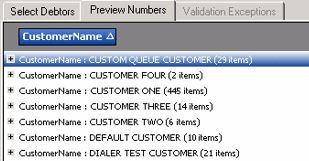
Click a column heading, drag it into the space above the column headings, and drop it. The system groups the accounts on the specified column. The following example shows accounts grouped by customer name.
-
To view the accounts in a group, click the plus sign (+) next to the group to expand it.
-
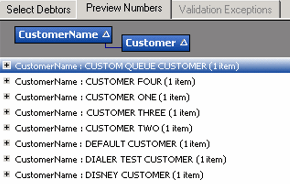
To add a group within a group, do the following:
-
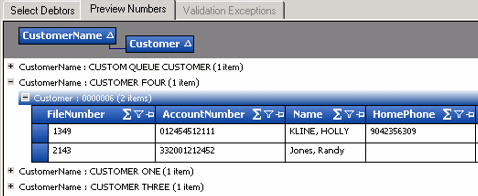
Click the plus sign (+) next to the group to expand it.
-
Click a column heading, drag it into the space above the column headings, and drop it.
-
Click the plus sign (+) next to the group to expand it.
-
To change the sort for a group (ascending or descending), click the group heading.
-
To delete a group, click the group heading and drag and drop it back into the query results space.