


- Contents
Assign a Court
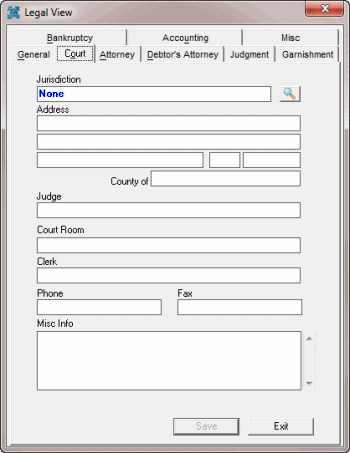
Use the Court tab in the Legal View dialog box to assign a court to the legal case. Some information on this tab is available for use in merge letters.
To assign a court
-
With an account displayed in the Work Form, from the Info menu, click Legal Case Info. The Legal View dialog box appears.
-
Click the Court tab.
-
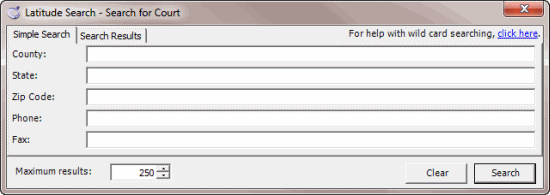
Click the Search icon next to the Jurisdiction list box. The Search for Court dialog box appears.
-
Type your search criteria and then click Search. The search results appear on the Search Results tab.
-
Click the jurisdiction and then click Select. The Search for Court dialog box closes and the system populates the Court tab with information for the selected court.
-
In the Judge box, type the name of the presiding judge.
-
In the Court Room box, type the court room for the scheduled hearing.
-
Click Save.
Note: To remove the court information and return the case to a non-legal state (no legal restriction indicator), click the red X next to the Jurisdiction box and then click Save.