


- Contents
Change the Check Number for a Payment
Use the Change Check Number dialog box to change the check number for an active ACH payment in an arrangement. To change the check number, the arrangement cannot be on hold and the payment must have a valid payment vendor token.
To change the check number for a payment
-
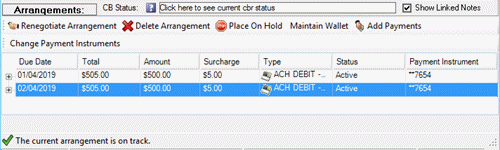
With an account displayed in the Work Form, from the menu bar, click Promise. The Arrangements panel appears.
-
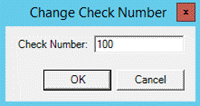
In the data grid, click the payment for which to change the check number and then click Check Number. The Change Check Number dialog box appears.
-
In the Check Number box, type the check number to use and then click OK. Latitude closes the dialog box and updates the check number for this payment only.