


- Contents
Linked Accounts
Use the Link window to view and maintain linked account information. Linked accounts indicate debtors with multiple delinquent accounts in your system. The accounts could belong to different customers. You can link accounts manually or the system could link them when you add new business or during end-of-day processing. Linked accounts have a Links icon in the Date Info and Balance Info section of the Work Form.
The Links icon appears as one of the following:
-
 Account is the driver account (main account to work).
 -
 Account is not the driver account.
-
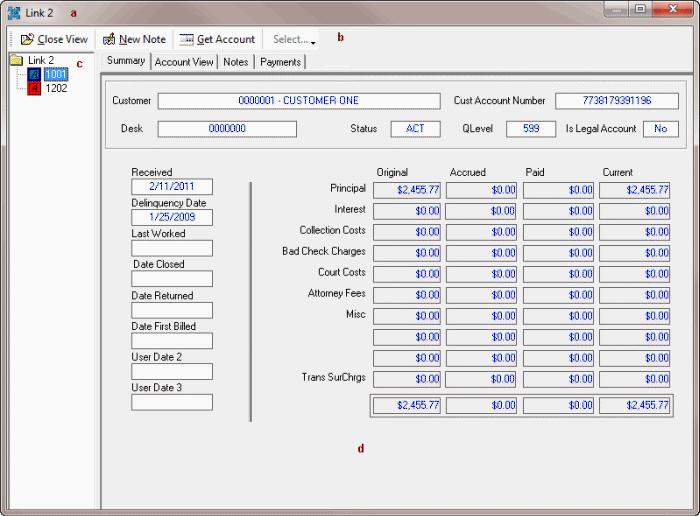
Title bar: Window title that includes the link number for the joined accounts.
-
Menu bar: Displays options for maintaining the linked accounts.
-
Navigation pane: Lists the linked accounts. A dark green icon indicates a driver account. A red icon indicates a closed account.
-
Information pane: Displays information for the selected account and tab.
Related Topics
Change the Link Driver Account
Change the Desk Assigned to Linked Accounts
View Summary Information for Linked Accounts
View Notes for a Linked Account
View Payments for a Linked Account
Display a Linked Account in the Work Form