


- Contents
View Payments for an Account
Use the Payments panel to view payments and adjustments that the system applied to the account.
To view payments for an account
-
With an account displayed in the Work Form, do one of the following:
-
At the top of the Panels section, click the name of the currently displayed panel (for example, Notes, Phones) and then click Show Payments.
-
From the Payments menu, click Summary.
The Payments panel appears.
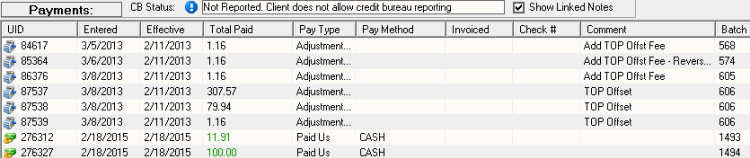
Note: If post-dated payments are on hold (for example, due to NSF), a date appears in the On Hold column and "Had NSF" appears next to the Extra Data boxes.
-
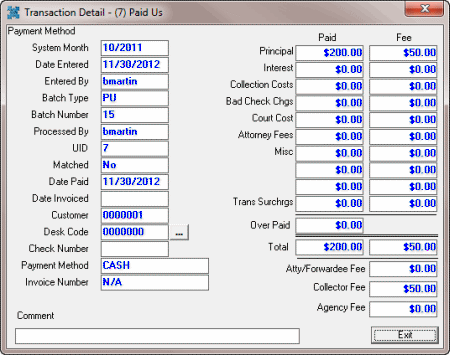
To view payment detail, double-click the payment. The Transaction Detail window appears. When finished viewing the information, click Exit.
Notes:
-
If you don't have the View Fees permission, asterisks (*) appear in the fee boxes.
-
If your organization set up a collector fee for the customer, this amount appears under the Attorney Fees box.