


- Contents
Tokenizer Configurator Help
Change the Master Database Key
Use the Settings section of the Secure CC Storage Configurator window to change the master database key to support your company's security policies.
To change the master database key
-
Perform a database backup using your company's backup procedure.
-
Click All Programs > Administrative Tools > Services. The Services window appears.

-
Right-click Secure Token Storage and then click Stop.
-
Close the Services window.
-
Copy the text file that contains the current (old) database key to the Tokenizer directory. The default location is "C:\Program Files(x86)\Latitude Software\Tokenizer." Specify a name for the copied file, for example "OldDatabaseKey.txt."
-
Open the Secure CC Storage Configurator window.

-
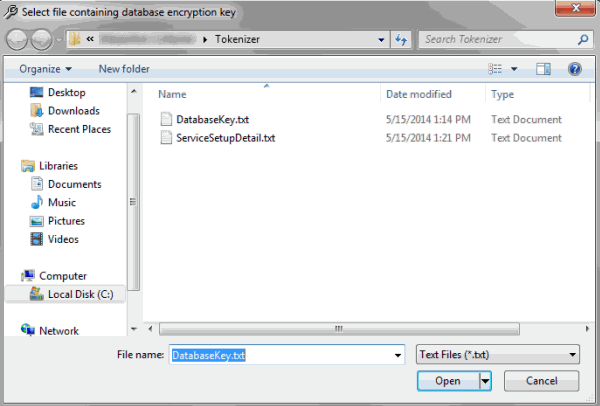
In the Current Database Encryption Key section, click From File and then click the ellipsis (...). The Select file containing database encryption key dialog box appears.
-
Click the DatabaseKey.txt file (which contains the old key) and then click Open.
-
In the New Database Encryption Key section, click Generate New Key.
-
In the Save Database Encryption Key section, select Save to File and then click the ellipsis (...). The Select file to write database encryption key to dialog box appears.

-
Click the DatabaseKey.txt file and then click Save.
-
In the lower section of the Secure CC Storage Configurator window, click Update Database. A notification dialog box appears.
-
Click OK.
-
Transfer the master key and then test the service.