


- Contents
Link Console Help
Specify Default Link Settings and Options
Use the Link Settings and Options tabs to specify the default link settings and options. Link Console applies default settings and options to all customer accounts that do not have custom link settings applied.
To specify default link settings and options
-
In the Navigation pane, click Default Settings. The default settings appear on the Link Settings tab.
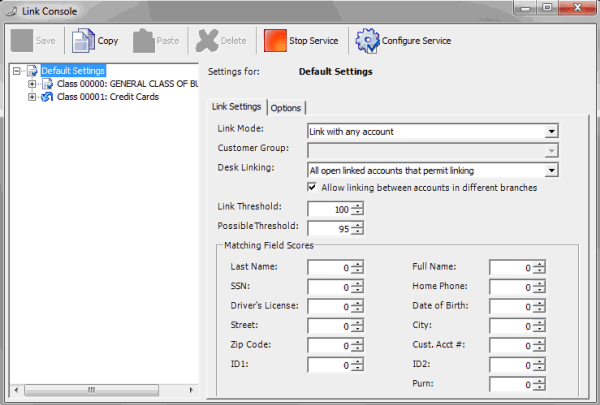
Link Mode: Method for linking accounts. Valid values are:
Do not link: Link Console doesn't link accounts.
Link within same customer: If accounts belong to the same customer, Link Console links the accounts that meet the link threshold criteria.
Link within same class of business: If accounts belong to the same class of business, Link Console links the accounts that meet the link threshold criteria.
Link within custom groups: If accounts belong to a customer with the specified customer group, Link Console links the accounts that meet the link threshold criteria. Typically, this option is not applicable for default settings.
Link with any account: Link Console links with any account that meets the link threshold criteria.
Customer Group: Customer group to link. This option is available if Link within custom groups is the Link Mode. Typically, this option is not applicable for default settings.
Desk Linking: Defines how the linking service treats a new account when Link Console matches it to a linked account and the desk for an account in that link doesn't permit linking. Valid values are:
All open linked accounts that permit linking: If all open accounts in the existing link belong to a desk that permits linking, the new account joins the link. If there are no open accounts in the existing link, the new account cannot join the link unless all closed accounts belong to desks that allow linking.
Any open linked account that permits linking: If at least one open account in the existing link belongs to a desk that permits linking, the new account joins the link. If there are no open accounts in the existing link, the new account cannot join the link unless at least one closed account belongs to a desk that permits linking.
All accounts linked that permit linking: If all accounts (open and closed) in the existing link belong to a desk that permits linking, the new account joins the link.
Any account linked that permits linking: If at least one account (open or closed) in the existing link belongs to a desk that permits linking, the new account joins the link.
Allow linking between accounts in different branches: If selected, Link Console allows account linking between branches. If accounts belong to separate branches, Link Console moves the accounts to the same desk automatically, if you selected that option on the Options tab.
Link Threshold: Level of criteria accounts must meet to warrant linking. Link Console sums the Matching Field Scores and if the sum is greater than the threshold, Link Console links the accounts. The higher the value applied to each Matching Field Score, the more weight the field has in determining a match.
Possible Threshold: Level of criteria an account must meet for the system to add the account to the list of accounts that almost meet the threshold criteria. Use this list to link accounts manually.
Matching Field Scores: Scores used to determine whether accounts meet enough criteria to warrant linking. The higher the score, the more weight the field has in determining a debtor match.
Last Name: Debtor's last name. Uses an algorithm to determine phonetic similarity.
Note: The system applies the weight assigned to Last Name to the total score only when there is no match on Full Name. If a match occurs for Full Name, the system doesn't apply the weight assigned to Last Name to the total score.
Full Name: Debtor's full name. Uses an algorithm to determine phonetic similarity.
SSN: Debtor's social security number, without formatting.
Home Phone: Debtor's home phone number, without formatting.
Driver's License: Debtor's driver's license number.
Date of Birth: Debtor's date of birth.
Street: Debtor's street address. Link Console removes spaces and only evaluates the first 10 characters.
City: Debtor's city. Link Console removes spaces and only evaluates the first eight characters.
ZIP Code: Debtor's postal code. Link Console removes formatting and only evaluates the first five digits.
County: Debtor's county.
Country: Debtor's country.
Cust Acct #: Customer account number.
ID 1: Unique identifier number one.
ID 2: Unique identifier number two.
Purn: (Personal Unique Record Number). Alphanumeric code that an outside provider such as a credit bureau assigns to uniquely identify a person.
The following example illustrates how Link Console handles linking when you set the link threshold to 101. The numbers in parentheses indicate the score assigned to the field.
|
Matching Fields |
Score |
Action |
|
Last Name (25) + SSN (95) |
120 |
Link accounts |
|
ZIP Code (10) + Full Name(50) + Home Phone (10) |
70 |
Possible table |
|
Full Name (50) + Date of Birth (45) + City (10) |
105 |
Link accounts |
|
Street (25) + City (10) + ZIP Code (10) + Cust. Acct# (10) |
55 |
No action |
-
Complete the information and then click the Options tab.
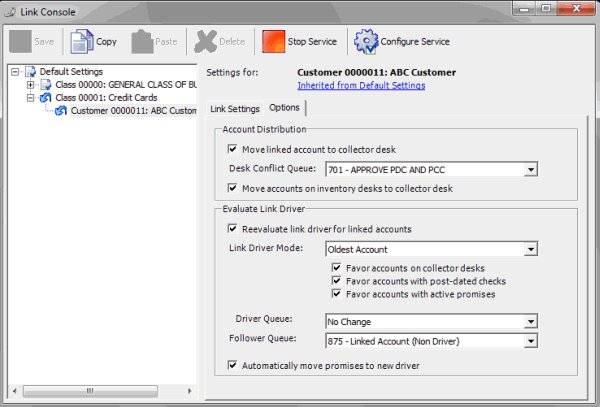
The settings in the Account Distribution section determine whether Link Console redistributes newly linked accounts to other desks, and how.
Move linked account to collector desk: If selected, Link Console moves linked accounts to a collector desk after linking. The system evaluates all the accounts in the linked group to determine the receiving collector desk. If a collector only worked one account, the desk assigned to that account receives the linked accounts. If there is a conflict (multiple desks, multiple worked), Link Console moves the account to the queue specified in the Desk Conflict Queue list box. If cleared, accounts remain assigned to their current desk.
Desk Conflict Queue: Supervisor queue level (700-799) to receive the linked accounts when multiple collectors have worked the accounts. If you selected the Move linked account to collector desk check box, specify a desk conflict queue.
Move accounts on inventory desks to collector desk: If selected, Link Console moves linked accounts assigned to an inventory desk to a collector desk after linking.
The settings in the Evaluate Link Driver section determine how Link Console sets the link driver once it links new accounts. The link driver is the only account that is queued for collection within the group of linked accounts. You can only set one account as the link driver in the linked group, and that account must have an active status.
Note: Evaluation of the account link driver resets the queue date automatically. Link Console sets the queue date to the current date, unless a collector worked the account today. If a collector worked the account today, Link Console sets the queue date to the following day.
Reevaluate link driver for linked accounts: If selected, your organization wants the link driver set (or reset) for accounts that Link Console just linked.
Link Driver Mode: Account within the group of linked accounts to set as the link driver. If you selected the Reevaluate link driver for linked accounts check box, specify an account.
Note: If you selected any of the following check boxes, Link Console ignores the Link Driver Mode setting.
Favor accounts on collector desks: If selected, Link Console weighs the account link driver toward an account in the group that belongs to a collector desk.
Favor accounts with post-dated checks: If selected, Link Console weighs the account link driver toward an account in the group with post-dated checks assigned.
Favor accounts with active promises: If selected, Link Console weighs the account link driver toward an account in the group with active promises.
Driver Queue: Queue level to set on the link driver account.
Follower Queue: Queue level to set on follower (non-link driver) accounts.
Automatically move promises to new driver: If selected, Link Console moves existing promise, PDC, and credit card arrangements from a follower account to the link driver account when the link driver account changes.
-
Complete the information and then, in the toolbar, click Save.