


- Contents
Document Exporter Help
Export Documents
Use the Accounts with Documentation\Export Configuration tab in the Latitude Document Exporter window to configure the export options and export the documents.
To export documents
-
After running a query, in the Latitude Document Exporter window, click the Accounts with Documentation\Export Configuration tab. The results appear in the data grid.
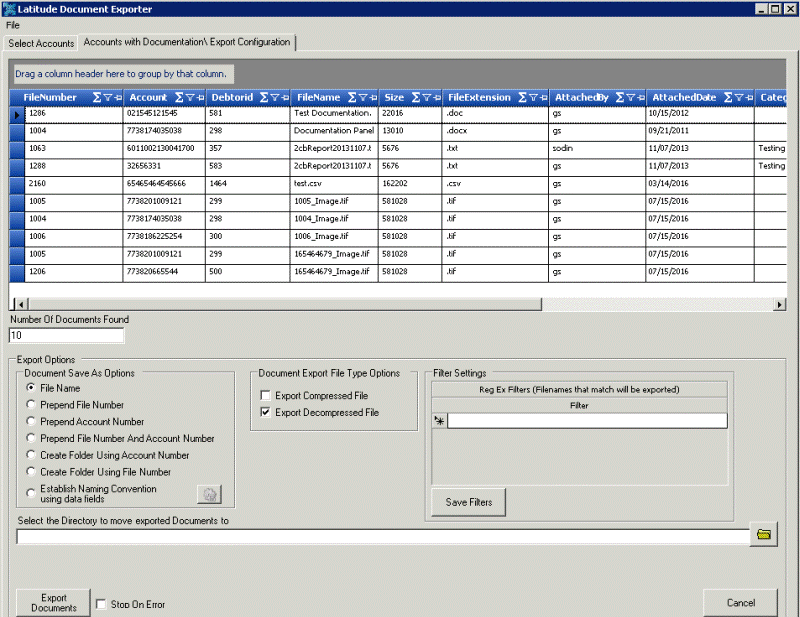
Number of Documents Found: Number of documents to export for the selected accounts.
File Name: If selected, saves the documents using their current file name.
Prepend File Number: If selected, saves the documents using their current file name with the Latitude file number included as the prefix.
Prepend Account Number: If selected, saves the documents using their current file name with the customer account number included as the prefix.
Prepend File Number and Account Number: If selected, saves the documents using their current file name with the Latitude file number and customer account number included as the prefix.
Create Folder Using Account Number: If selected, creates a separate folder for each customer account number and saves the documents in their corresponding folder using their current file name.
Create Folder Using File Number: If selected, creates a separate folder for each Latitude file number and saves the documents in their corresponding folder using their current file name.
Establish Naming Convention Using Data Fields: If selected, the system names the files according to the naming convention you specify.
Export Compressed File: If selected, the system compresses the files before exporting them.
Export Decompressed File: If selected, the system doesn't compress the files before exporting them.
Filter: Regular expression to use to limit the documents to export to the ones that match specific file names. You can specify more than one filter.
Save Filters: Saves the filters you specified.
Select the Directory to Move Exported Documents to: Directory to which to move exported documents.
Stop on Error: If selected, the system stops the export process when an error occurs.
-
If you selected the Establish Naming Convention Using Data Fields check box, do the following:
-
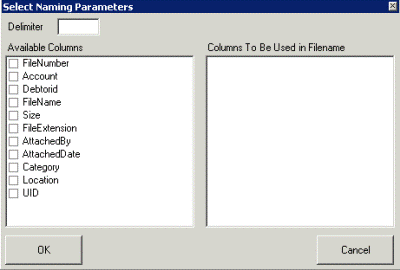
Click the Gear icon next to the check box. The Select Naming Parameters dialog box appears.
-
Select the columns to use as the file naming convention and then click OK.
-
Complete the remaining information and then click Export Documents. The system exports the documents that match the settings you specified.