


- Contents
Invoices Help
Add a Transaction to the Check Register
Use the New Bank Entry dialog box to add a transaction to the check register.
To add a transaction to the check register
-
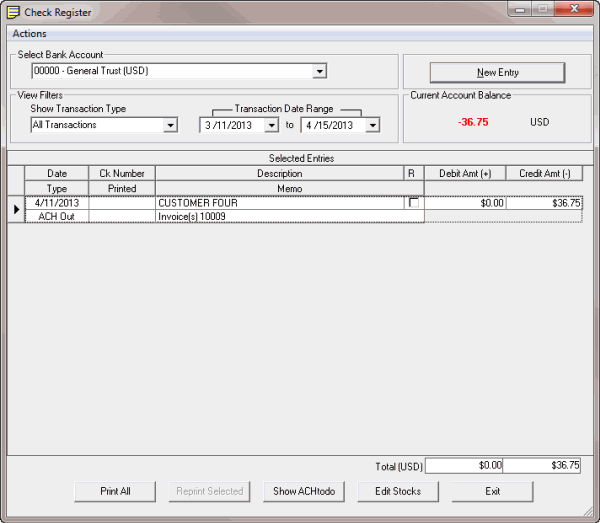
In the Invoices window, from the View menu, click Check Register. The Check Register window appears.
-
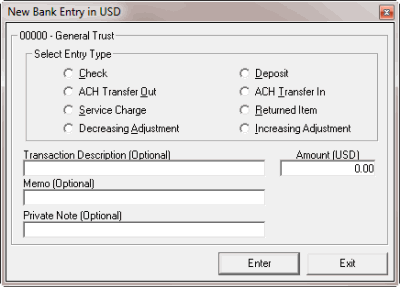
Click New Entry. The New Bank Entry dialog box appears.
-
In the Select Entry Type section, click the transaction type.
-
In the Transaction Description box, type a description of the transaction.
-
In the Amount (USD) box, type the transaction amount.
-
In the Memo box, type more information regarding the transaction.
-
In the Private Note box, type information that you want available internally only. This information doesn't appear on checks or reports to the customer.
-
Click Enter. A notification dialog box appears.
-
Click OK.
-
In the New Bank Entry dialog box, click Exit.