


- Contents
Invoices Help
Create or Modify a Check Template
Use the Check Stock Editor window to create or modify a check template to use when you print checks. The Invoices program includes a standard check template. You can modify this template or create your own. You can use any standard 8 ½ x 11 paper stock that prints 3 checks per page.
To create or modify a check template
-
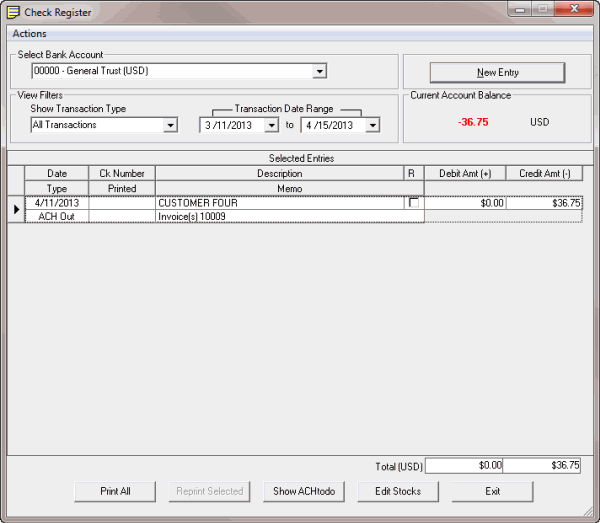
In the Invoices window, from the View menu, click Check Register. The Check Register window appears.
-
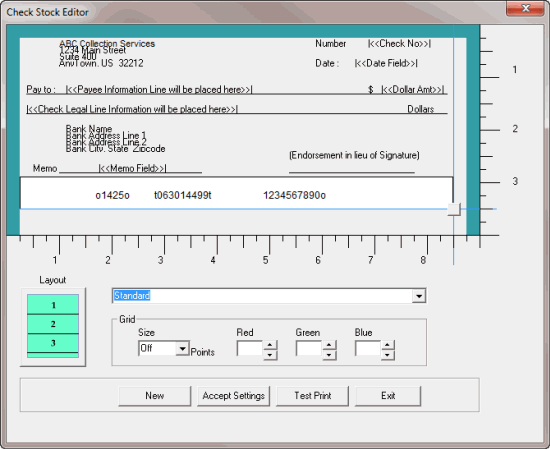
Click Edit Stocks. The Check Stock Editor window appears.
-
To create a check template, click New. The Invoices program clears the layout settings to allow you to specify settings for the new template.
-
To modify a label on the check (for example, Number or Date), do the following:
-
Double-click the label. The Label Edit dialog box appears.
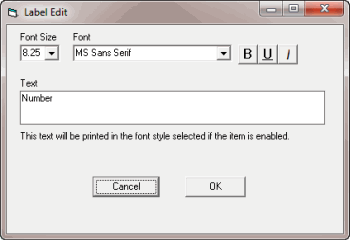
Font Size: Label font size.
Font: Label font style.
B: Click to bold the label.
U: Click to underline the label.
I: Click to italicize the label.
Text: Label text.
-
Modify the information as necessary and then click OK.
-
To exclude a label from printing on checks, right-click the label and then click Disable this field. The label is gray.
-
To include a label so that it prints on checks, right-click the label and then click Enable this field. The label is no longer gray.
-
To change the location of a label, click the label and drag it to the location you want and then release your mouse button.
-
To change the check size, click the square in the lower right-side corner of the check and drag it to the width and height you want. Use the rulers as a guide. The Invoices program moves the magnetic code strip so that it appears in the lower section of the check.
-
To change the number of checks to print per page, click in the Layout box.
-
If you're creating a template, in the template name list box, type a name for the template.
-
To print a grid on the background of the check, in the Grid section, do the following:
-
In the Size list box, click the size of the grid.
-
To set the grid color, in the Red, Green, and Blue boxes, type or click the color mix.
-
To print a check sample so that you can verify the layout settings, click Test Print.
-
When the layout settings are correct, click Accept Settings and then click Exit.