

- Contents
Add a Payment Method Code
Use the Payment Method Properties dialog box to add a payment method code.
To add a payment method code
-
In the Main Menu window, from the Maintenance menu, click System Codes and Settings. The Latitude Maintenance window appears.
-
In the Navigation pane, double-click the Payment Methods folder, or right-click the Payment Methods folder and then click New Payment Method. The Payment Method Properties dialog box appears.
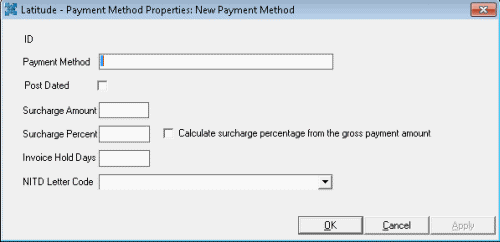
Payment Method: Name of the payment method.
Post Dated: If selected, this payment method is for post-dated entries. You can use this payment method when adding post-dated check information for an account.
Surcharge Amount: Amount your agency adds to the debtor account for payments received using this method (not applied to MA accounts). This amount displays in the Surcharge box on the Calculate Arrangements page in the Payment Arrangements Wizard and in money bucket 10 when you add a payment.
Surcharge Percent: Percentage your agency adds to the debtor account for payments received using this method (not applied to MA accounts). The system adds this money to money bucket 10 when you add a payment.
Calculate surcharge percentage from the gross payment amount: If selected, the system calculates the surcharge percentage based on the gross payment amount.
Invoice Hold Days: Number of days to wait before posting payments received to the customer's invoice using this method.
NITD Letter Code: Notice of Intent to Deposit letter. Select a letter code to generate when adding payments for debtor accounts using this method. Use Letter Console to create, modify, and send letters.
-
Complete the information and then click OK.