


- Contents
Award Judgment on a Case
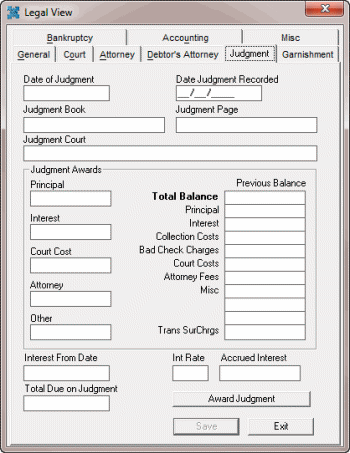
Use the Judgment tab in the Legal View dialog box to award judgment on a case. You can only award judgment after you assign a court. Some information on this tab is available for use in merge letters.
To award judgment on a case
-
With an account displayed in the Work Form, from the Info menu, click Legal Case Info. The Legal View dialog box appears.
-
Click the Judgment tab.
-
Click Award Judgment. The Judgment Award Wizard appears.
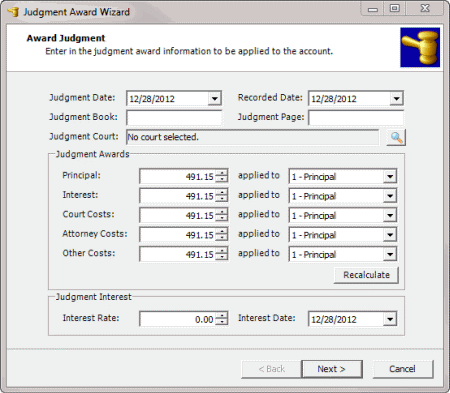
Judgment Date: Date the court awarded judgment. Defaults to the current date.
Recorded Date: Date the court recorded information about the case. Defaults to the current date.
Judgment Book: Book that contains the recording information received from the court.
Judgment Page: Page that contains the recording information received from the court.
Judgment Court: Court that awarded judgment. Defaults to the court selected on the Court Information tab.
Judgment Awards: The first column reflects the current balance for each money bucket associated to the account. In each box, type the amount the court is awarding or use the arrows to increase or decrease the amounts. The second column reflects the money buckets to apply the judgment awards to. If these buckets are gray, you cannot change them.
Judgment Interest Rate: Interest percent that the system calculated from the specified interest date and applied toward amounts awarded to the principal.
Interest Date: Date to use to apply interest at the specified interest rate.
-
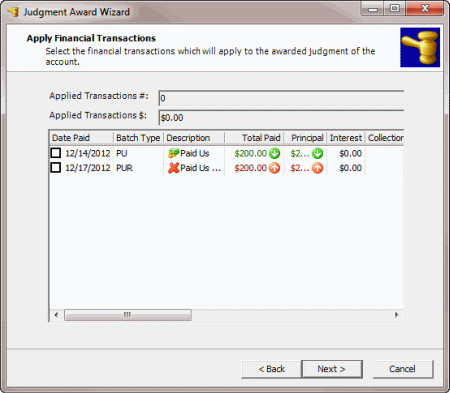
Complete the information and then click Next. If the system applied payments to the account previously, the Apply Financial Transactions page appears.
-
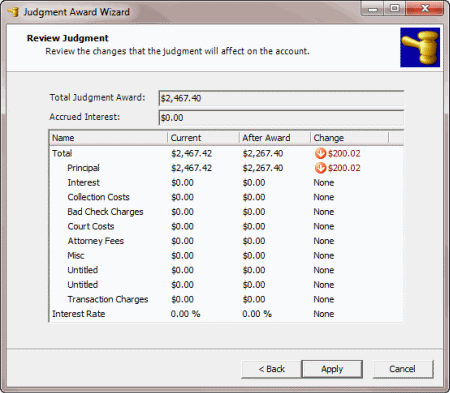
Select the payments to apply toward the judgment and then click Next. The Review Judgment page appears.
-
Review the information and then do one of the following:
-
To change the information, click Back.
-
To apply the change, click Apply. A confirmation dialog box appears. Click Yes. The wizard closes and the status on the General tab in the Legal View dialog box changes to "JDGMT - Judgment."
Note: In the Payments panel in the Work Form, the system flags the Pay Type as "Legal Judgment."