


- Contents
Specify Your Agency's Attorney
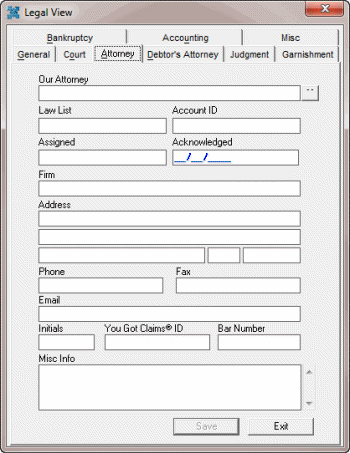
Use the Attorney tab in the Legal View dialog box to specify your agency's attorney. Some information on this tab is available for use in merge letters.
To specify your agency's attorney
-
With an account displayed in the Work Form, from the Info menu, click Legal Case Info. The Legal View dialog box appears.
-
Click the Attorney tab.
-
To select the attorney, do the following:
-
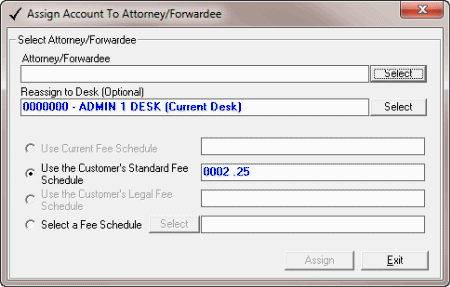
Next to the Our Attorney box, click the ellipses (...). The Assign Account to Attorney/Forwardee dialog box appears.
-
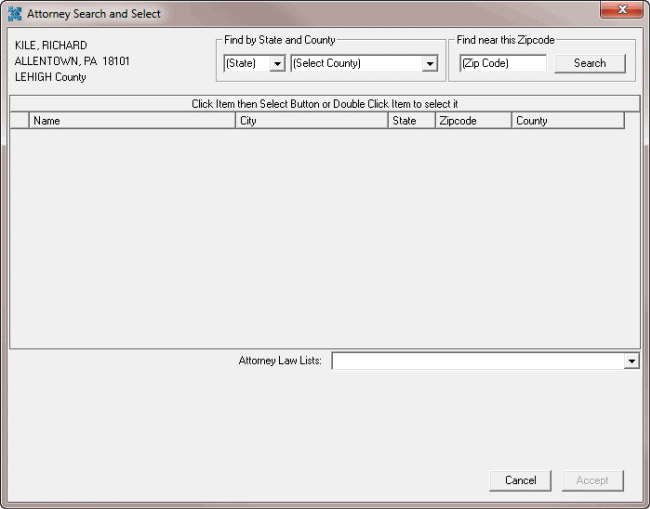
Next to the Attorney/Forwarder box, click Select. The Attorney Search and Select dialog box appears.
-
Specify your search criteria and then click Search.
-
In the search results, click the attorney or forwarder.
-
If the attorney has multiple law lists, in the Attorney Law Lists list box, click the law list.
-
Click Accept. The Attorney Search and Select dialog box closes.
-
In the Assign Account to Attorney/Forwardee dialog box, click Assign and then click Exit. The Assign Account to Attorney/Forwardee dialog box closes and the Attorney tab populates with the selected attorney's information.
Note: To generate a placement letter, do the steps to Generate an Attorney Placement Letter. To remove the attorney assignment, do the steps to Remove an Attorney or Forwarder Assignment.
-
Complete any remaining information and then click Save.