


- Contents
Vendor Payment Batch Wizard
Open an Existing Filter
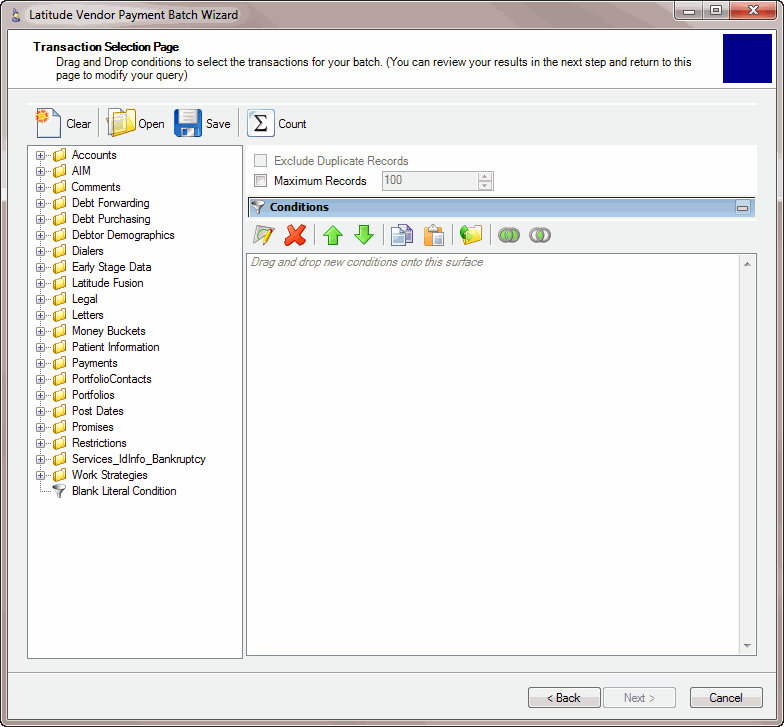
Use the Transaction Selection Page to open an existing filter so you can apply it to the payment batch. You can modify the filter or apply it with its current settings.
To open an existing filter
-
If you aren't on the Transaction Selection Page already, on the Vendor Batch Review Page, click Set Custom Filtering. The Transaction Selection Page appears.
-
In the toolbar, click Open. The Open Query Dialog appears.

-
Locate the filter to open, click the filter, and then click Open. The filter appears in the Conditions pane. You can add conditions to the filter, modify the existing conditions, or return to the Vendor Batch Review Page so the wizard applies the filter.
-
To add conditions, do the following:
-
Drag and drop a condition into the Conditions pane. A dialog box appears to allow you to specify the condition criteria.
-
In the dialog box, specify the criteria and then click Okay. The condition appears in the Conditions pane.
-
To modify a condition, do the following:
-
Double-click the condition, or right-click the condition and then click Edit. A dialog box appears to allow you to specify the condition criteria.
-
Modify the criteria and then click Okay.
-
To save the changes you made to the filter, do the following:
-
Click Save. The Save Query Dialog box appears.

-
Click the filter name to overwrite or, in the Query Name box, type a new name for the filter and then click Save.
Note: You don't have to save the filter to apply it to the payment batch.
-
When finished, click Back. A message appears indicating a customer filter is present.