


- Contents
Invoices Help
View Payment and Adjustment Transactions
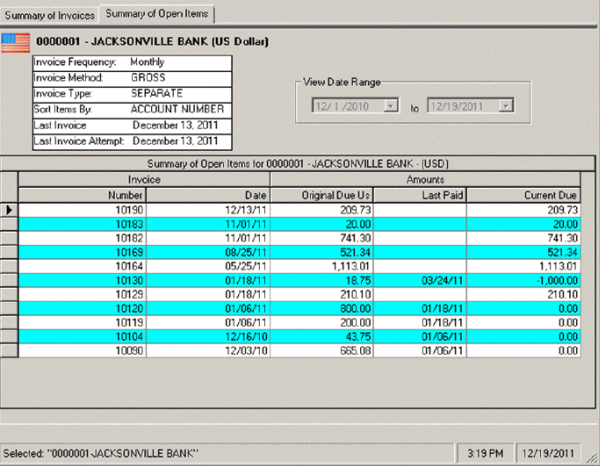
Use the Summary of Open Items tab in the Invoices window to view payment and adjustment transactions by invoice for a customer.
Note: The data grid includes invoices for parent customers only. If you select a child customer, the Invoices program displays the parent customer number to reference.
To view payment and adjustment transactions
-
In the Invoices window, in the Navigation pane, click the customer or invoicing group for which to display invoices.
-
Click the Summary of Open Items tab.
-
To change the date range for which to display invoices, click the arrow next to the date range boxes and click a beginning and ending date.
-
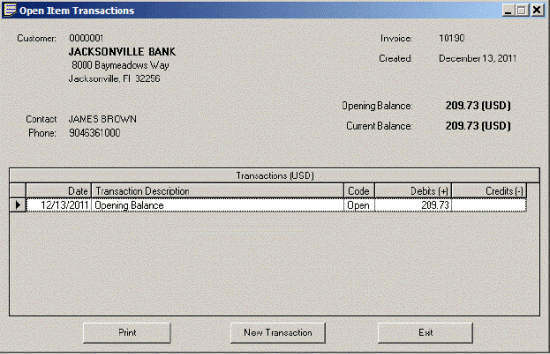
In the data grid, right-click the invoice and then click View Transactions. The Open Item Transactions dialog box appears.
Tip: To select multiple sequential invoices, press and hold the Shift key and click the first and last sequential invoice. To select multiple non-sequential invoices, press and hold the Ctrl key and click each individual invoice.
-
To print the information, click Print. In the Print dialog box, modify the settings as necessary and then click Print. The information is output to the specified printer.
-
To post another transaction to the invoice, click New Transaction.
-
To close the dialog box, click Exit.