


- Contents
Letter Console Help
Restart a Print Job
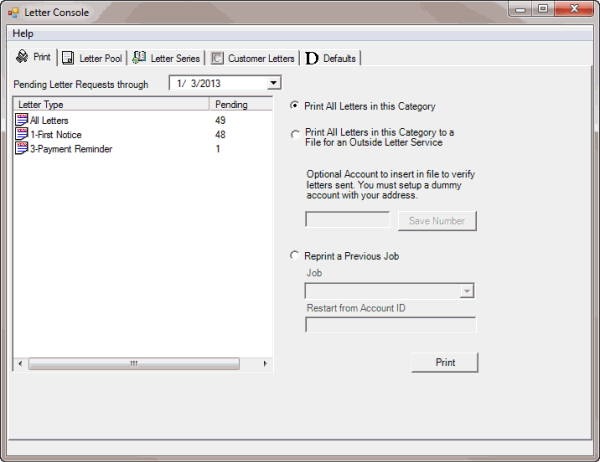
Use the Print tab to restart a print job that you stopped or that didn't complete successfully.
To restart a print job
-
Click the Print tab.
-
Click Reprint a Previous Job.
-
In the Job list box, click the print job. The job ID format is: job_date_time_lettercode_letterdescription.
-
To restart the print job from a specific account number, in the Restart from Account ID box, type the last account number printed. To print the entire batch, leave this box blank.
-
Click Print. The Print dialog box appears.
-
Modify the settings as necessary and then click OK. Letter Console reprints the letters.