


- Contents
List Builder Help
Create Dialer File
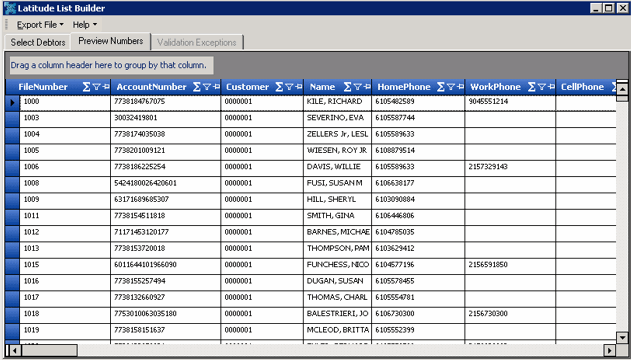
Use the Preview Numbers tab to export the results of a query to a dialer file for a dialer vendor. The file options available for each dialer depend on the file types that the vendor supports.
To create a dialer file
-
In the toolbar, click Run. The results appear on the Preview Numbers tab.
-
If you’re satisfied with the results, do the following:
-
In the menu bar, click Export File and then click the name of the dialer vendor. The system displays more options for some dialer vendors. In the following example for the Noble dialer vendor, you can choose to include Home Phone or Work Phone in the dialer file.
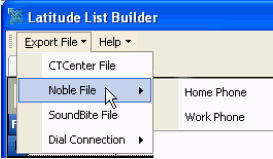
After specifying an option (if available), the Save As dialog box appears.
-
In the File name box, type a name for the file.
-
In the Save as type box, click the type of file the dialer vendor requires and then click Save. The Process Complete dialog box appears. It displays the number of records included in the file and the number of records that failed validation.
-
Click OK.