


- Contents
Reporting Console
Add a Custom Report
Use the Navigation pane to add a custom report to a custom report folder.
To add a custom report
-
In the Navigation pane, expand a custom report folder.
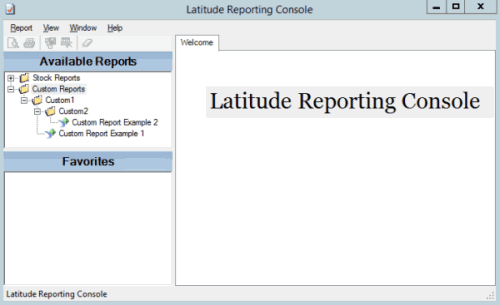
-
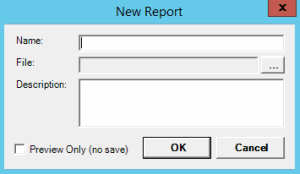
Right-click a custom report folder and then click New Report. The New Report dialog box appears.
-
In the Name box, type the title of the report.
-
In the File box, do the following:
-
Click the ellipsis (...). The Select Report File dialog box appears.
-
Click the report file name (with an ".rpt" extension) and then click Open.
-
In the Description box, type a description of the report.
-
To allow an immediate, one-time run of the report, click Preview Only. The system does not save the report in the Navigation pane. This option is useful during development and testing of a custom report.
-
Click OK. The system adds the report to the specified custom folder in the Navigation pane.