


- Contents
Create a Schedule
Use the Schedule tab to Create Schedules for the tasks and run the tasks at the defined schedules.
To add a Schedule:
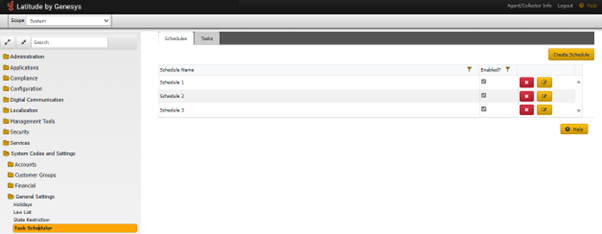
- In the Navigation pane, click System Codes and Settings > General Settings > Task Schedular
-
Create a Schedule.
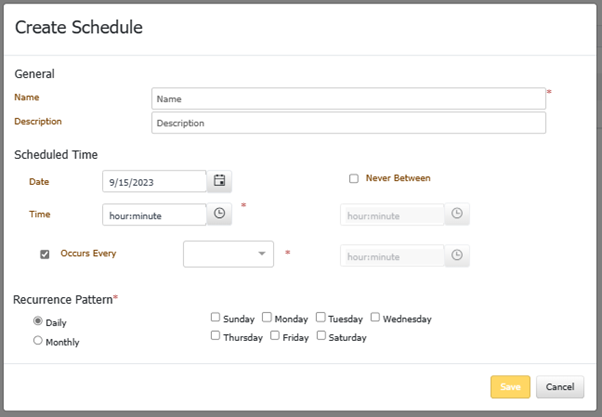
General
- Name: User to set the name of the task.
- Description: User to add the description of the task.
Scheduled Time
- Date: Sets ‘Date’ to run the Tasks.
- Time: Sets ‘Time’ to run the tasks.
- Never Between: Selecting the check box, avoids the execution of tasks between specific times.
- Occurs every: choose from the drop-down, the intervals of task execution (15 mins, hourly. etc.)
Recurrence Pattern
- Daily ( Sunday, Monday, Tuesday, Wednesday, Thursday, Friday, Saturday): Enable s the task that occurs daily during the week.
- Monthly: Creates a schedule that recurs every month.
Schedules: List of all the Schedules shown in the Schedules Tab.
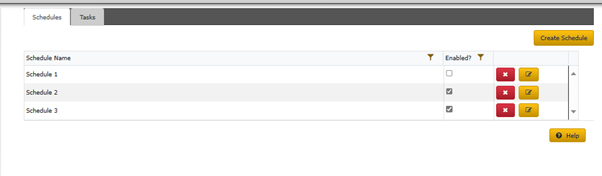
Enabled: Tick the option to enable the Schedule to run. When a schedule is disabled, all Tasks associated with it are also disabled. However, when a schedule is enabled, Tasks associated with it are not enabled. The user should manually review each task and enable it.
Delete: Removes the Schedule and any tasks associated with it.
Edit: Edits the specific schedule and all the Tasks’ Next Run Time is updated per the schedule.