


- Contents
AIM Help
Generate a Payment Errors Report
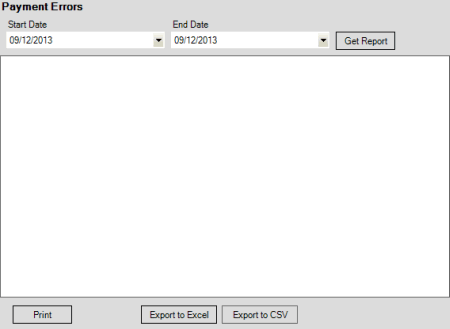
Use the Payment Errors pane to generate a Payment Errors report. The report displays errors that occurred when you imported payment transactions.
To generate a Payment Errors report
-
In the menu bar, click Reports, click Processing, click Payments, and then click Payment Errors. The Payment Errors pane appears.
-
In the Start Date list box, click the start date for which to display data.
-
In the End Date list box, click the end date for which to display data.
-
Click Get Report.
-
To modify the report view, see Report Options.
-
To print the report, click Print.
-
To export the report to a Microsoft Excel file, do the following:
-
Click Export to Excel. The Save As dialog box appears.
-
In the File name box, type a name for the file and then click Save.
-
To export the report to a Comma Separate Value (CSV) file, do the following:
-
Click Export to CSV. The Save As dialog box appears.
-
In the File name box, type a name for the file and then click Save.