


- Contents
Latitude Console Help
Add a Client to a Client Group
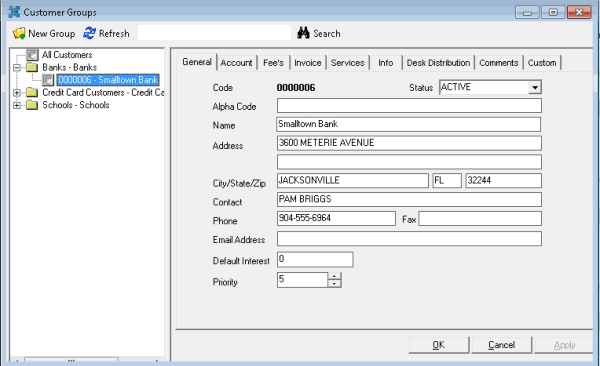
Use the Customer Groups window to add a client to a client group.
To add a client to a client group
-
In the Main Menu window, from the Maintenance menu, click Custom Customer Groups. The Customer Groups window appears.
-
In the Navigation pane, click All Customers. All clients in the system appear in the Information pane.
-
In the Information pane, click a client, and then drag and drop it onto a client group in the Navigation pane.
-
To select multiple clients to add to a client group, do one of the following:
-
-
To select contiguous clients, click the first client to select, hold down the Shift key and click the last client to select. Drag and drop the clients to the client group.
-
To select non-contiguous clients, click the first client to select, hold down the Ctrl key and click each additional client to select. Drag and drop the clients to the client group.
-
Related Topics