


- Contents
Interaction Scripter Client User's Guide
What to do if you get a Windows Security Warning
In rare cases, agents may see a Windows Security warning:
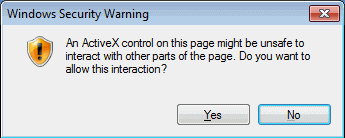
If this message appears when you attempt to create a callback in Interaction Scripter .NET Client by clicking a "schedule" disposition, follow the instructions below:
-
Click Start.
-
Type Regedit in the Search Programs and Files box.
-
If prompted to allow changes to this computer, click Yes.
-
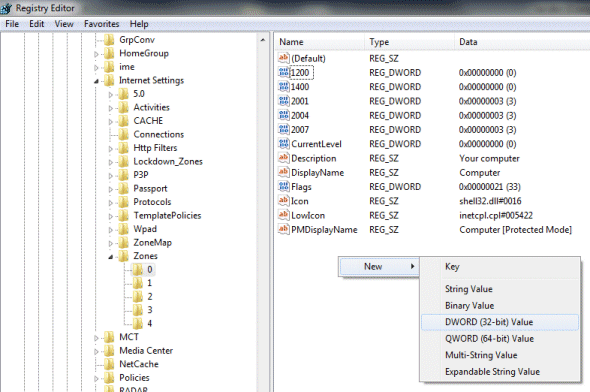
Expand HKEY_CURRENT_USER.
-
Then expand Software > Microsoft > Windows > CurrentVersion > Internet Settings > Zones.
-
Select the "0" folder.
-
Click the right mouse button to open the shortcut menu. Select New > DWORD (32-bit) Value.
-
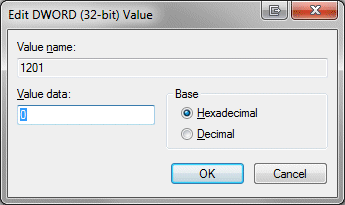
Type 1201. Then press Enter.
-
Double-click 1201 to open its properties. Make sure that its value is zero.
-
Click OK to close the dialog.
-
Choose File > Exit to end the registry editor.
ActiveX control in a custom script
If the message appears while you are running a custom script, it is likely that the script contains an ActiveX control. Follow the steps below to solve this problem in Windows 7 with IE 9. These settings allow sites in the list of trusted sites to run potentially harmful or malicious ActiveX controls. Add only sites that you are completely confident of to this list.
Tip: Instead of steps 1 through 3, click Start, and then enter inetcpl.cpl.
-
Click Start -> Control Panel.
-
Click Network and Internet.
-
Click Internet Options.
-
Click the Trusted Sites zone icon.
-
Click Custom Level.
-
Move the slider to Low.
-
Click Sites.
-
In the Trusted Sites dialog box, copy the URL of the Customer Interaction Center into the Add this website to the Zone box. This URL is similar to https://webclient.yourcompany.com/WebClient/WebClientPage.aspx.
-
Click Add.
-
Click Close.
-
In the Internet Properties dialog box, click OK.