


- Contents
PureConnect CX Insights Help
Create Dashboards Using IVR Reports
- To create Dossier, click Create button and select New Dossier. The New Dossier page appears.

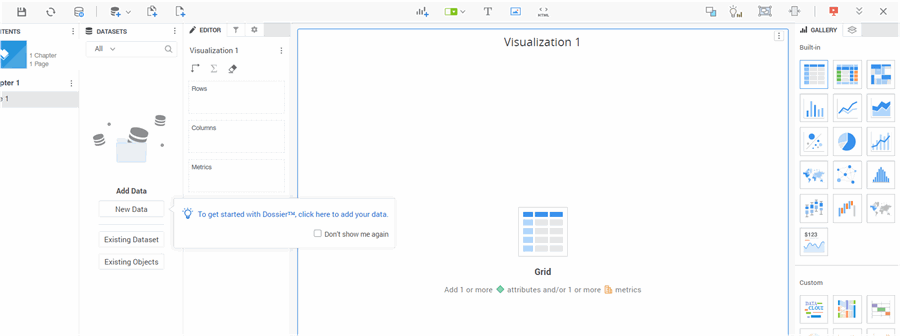
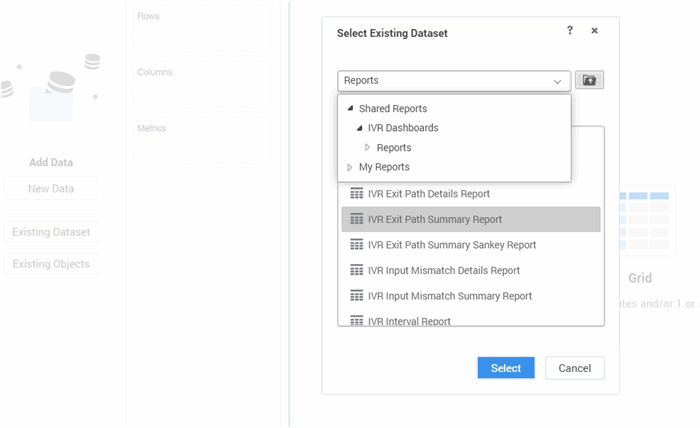
- Select Existing Dataset from Dataset Panel and select IVR Dashboards→ Reports→ IVR Exit Path Summary Report.
- Select the Start Date, End Date, Exit Path, Profile Name. Select the values with the data.

- Click Run Dossier after selecting the prompt values. Redirects to the Dossier design page.


- Click Visualization1 and Select the Pie chart.

- Drag and drop Interaction Count to Angle section and Exit Path to Color By section.

- Rename the title of Visualization to Number of Interactions by Exit Path and rename the Interaction Count to Number of Interaction.

- Click add new visualization icon. A new visualization with Title Visualization1 will be added.
- Select Visulization1 and click Vitara stacked Column chart.

- Drag and drop Event Date to Category Axis, Exit Path to Break By, and Interaction Count to Value.
- Rename the Title of visualization to Number of Interactions by Date and Interaction Count to Number of Interactions.

- Click Pie Chart (Number of Interactions by Exit Path) and select Duplicate.

- New visualization added with the name Number of Interactions by Exit Path copy.

- Adjust the visualizations.

- Rename the newly added visualization Title as Number of Interactions by Profile Name and replace Exit Path in Color By and Slice with Profile Name.

- Similarly, duplicate the Number of Interactions by Date and replace the visualization with Google Sankey.

- Modify the caption of Google Sankey to Interactions Flow and Replace Event Date with Profile Name.

- Similarly, duplicate the Number of Interactions by Date and replace the visualization with Vitara Stacked Bar chart. Replace Exit Path with Profile Name and change the Captions.

- Add new Visualization and select KPI.

- Drag and Drop Interaction Count to Metric section and Exit Path to Break By.

- Adjust the visualizations and change the Caption of KPI.
- Drag and drop Exit Path, and Profile Name to the Filter panel.
- Open the Dossier in the Presentation Mode.
- To hide the filter panel, click Hide Filter Panel icon. Save the dossier.

- Open the saved dossier and click Add Data → Existing Dataset and select Exit Path Details report. Exit Path Details Report will be added to the dossier.


- Click Add New Visualization and drag and drop all the attributes from Exit Path Details report. Rename the caption of the newly added Visualization and then save the dossier.
